

Most HubSpot automation fires off an event — a form submit, a stage change. But some of the most valuable automations are about time: renewals coming due, trials ending, a contract anniversary, "no activity in 30 days." Those run on date properties, and they're the part of Workflows most teams never set up — which means renewals get missed and follow-ups slip. Here's a practical walkthrough of what date properties can do and how to build the workflows that matter.
What is a date property, and why does it matter?
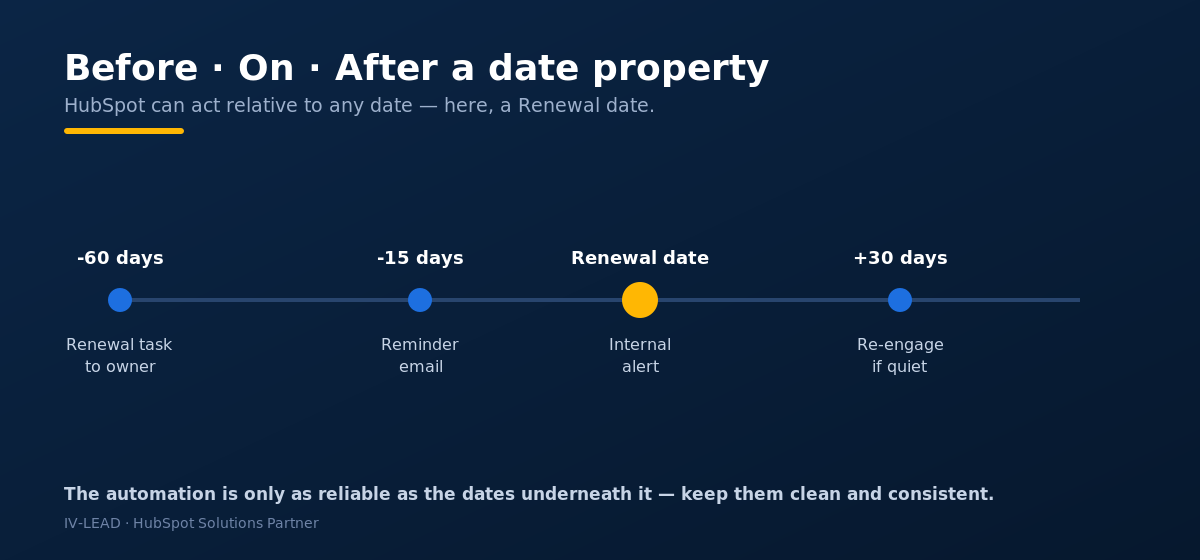
A date property is any field holding a date — close date, create date, last activity date, contract renewal date, trial end date, or a custom one you define. Once a date lives in a property, HubSpot can act relative to it: X days before, on the day, or X days after. That single capability unlocks a whole class of "happen at the right time" automations. Worked example: store a "Renewal date" on the company, and HubSpot can automatically create a renewal task for the owner 60 days before — every account, every time, with zero manual tracking.
Which use cases should you build first?
- Renewal and contract reminders. Trigger N days before a renewal or contract date → task to the owner + an internal alert. The single highest-ROI date automation for any retainer or subscription business.
- Trial and onboarding nudges. X days after trial start → a check-in email or a CS task, so no trial dies in silence.
- Re-engagement on inactivity. "Last activity date" more than 30/60/90 days ago → a re-engagement sequence or a "this is going cold" alert.
- Anniversary and lifecycle moments. One year after someone becomes a customer → a QBR task or a loyalty touch.
- Data-hygiene timers. "Create date" old and still a lead → review or archive, so the database doesn't rot. (Pairs with your CRM cleanup routine.)
How do you build a date-based workflow (step by step)?
Before you start: confirm the date you need actually lives in a property, and that it's populated. A renewal automation is only as good as the renewal dates in the CRM.
- Create the workflow. Choose the right type (contact-, company-, or deal-based) to match where the date lives.
- Set the schedule. Choose "On a schedule" in the newer builder (or the "Based on a date property" trigger in legacy workflows), then point it at the date property and the offset — for example, "7 days before Renewal date." HubSpot anchors timing to the date itself, not just a fixed delay.
- Add the action. Create a task for the owner, send an internal notification, enroll in a sequence, or update a property.
- Handle the edge cases. What if the date is blank? What if it's in the past when the record enrolls? Add branches or filters so the workflow doesn't fire on bad or empty dates. Worked example: exclude records with no renewal date so you don't generate phantom tasks.
- Test with one record. Set a test date, confirm the action fires at the right offset, then turn it on.
What mistakes break date workflows?
- Empty or inconsistent date fields — the #1 failure. If half your accounts have no renewal date, half your renewals won't fire. Fix the data first.
- Wrong object. Putting a company-level date automation on a contact workflow (or the reverse), so it never finds the field.
- No edge-case handling — workflows firing on past or null dates, creating noise.
- "Set and forget." Date automations deserve a periodic check that they're still firing correctly.
What's the IV-Lead take?
Date properties turn HubSpot from "reacts to clicks" into "remembers what matters and acts on time." For any business with renewals, trials, or accounts that go quiet, a handful of date-based workflows recover revenue that was quietly leaking through missed follow-ups. The catch is the same as everything in HubSpot: the automation is only as reliable as the data underneath it. Get the dates clean and consistent, and these become some of the highest-ROI workflows you'll ever build.
Frequently asked questions
What's the difference between an event-based and a date-based workflow in HubSpot?
An event-based workflow fires on an action (a form submit, a stage change). A date-based workflow fires relative to a date property — X days before, on, or after a date such as a renewal.
How do I trigger a workflow a set number of days before a date?
Use "On a schedule" in the newer builder (or the "Based on a date property" trigger in legacy workflows), choose the date property, and set a Before-date offset — e.g., 7 days before Renewal date.
Why isn't my date-based workflow firing?
Usually empty or inconsistent date fields, the wrong object type, or no handling for blank/past dates. Fix the data and add filters that exclude empty dates.
What's the highest-ROI date-based workflow to build first?
Renewal and contract reminders — a task to the owner a set number of days before the renewal date — for any retainer or subscription business.
Want renewals and follow-ups to run themselves — reliably? Book a free 30-minute portal audit https://meetings.hubspot.com/chen12 and we'll find the date-based automations your portal is missing.