


To import data into HubSpot cleanly, decide which objects you are loading and which unique identifier each one will match on before you open the import tool, then choose whether the run should create records, update them, or both. Shape the file around those decisions, run a small pilot batch, and check associations and one report before you load the rest.
Key takeaways
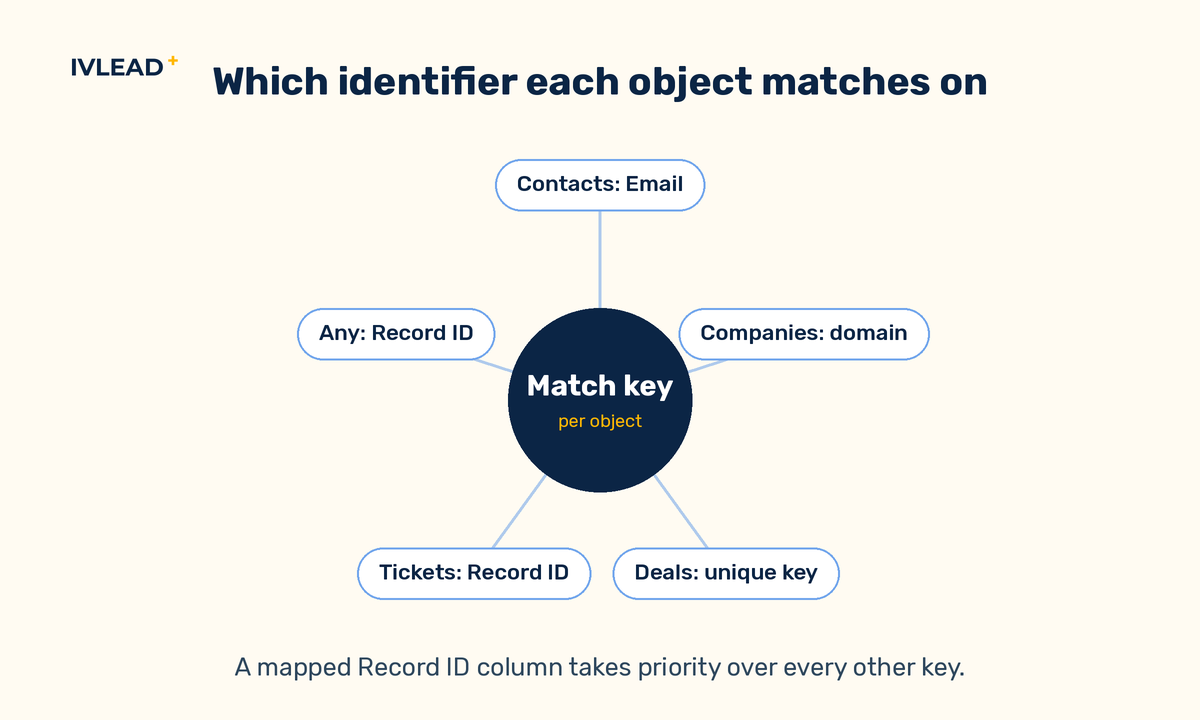
- HubSpot recognises an existing record through a unique identifier: Email for contacts, Company domain name for companies, and Record ID or a custom property that requires unique values for the rest. Without one, a repeat import creates duplicates.
- Deals have no natural key like Email. To update them later, either re-import on Record ID from a HubSpot export, or store a stable number from your ERP, such as a quote number, in a custom property that requires unique values.
- A mapped Record ID column takes priority over Email, domain or any custom key, so unmap it unless the values came from this portal.
- To connect records of different objects, such as contacts to companies, run a multiple object import: one file with several objects per row, or two files with a shared column.
When is an import the right tool, and when is it not?
The import tool suits bulk work that happens once or occasionally: a migration from another CRM or spreadsheets, an attendee list after an event, an enrichment file from a vendor, or a bulk change to a property across many records. For that last case, export the records with their Record ID, edit the spreadsheet, and import it back with Record ID as the identifier.
It is the wrong tool for data that changes continuously elsewhere. If your ERP holds order status and you import that file every Monday, the CRM is wrong six days a week, and every run carries the risk of a mapping slip. HubSpot's data sync is built for the ongoing two-way case, and a managed integration is the step beyond it. For a full move from another CRM, HubSpot also offers a self-service transfer that audits and syncs the data, worth evaluating before you build export files by hand.
Two smaller alternatives are easy to miss. If you only need contacts with no extra options, the quick import tool is the simpler route. And if your contacts' email domains match their companies' website domains, HubSpot's automatic company creation and association setting can create and link companies without a company file. Where the email domains differ from the companies' website domains, the setting creates the wrong companies, so turn it off before you associate companies through an import.
What should you decide before you build the import file?
Which objects, and in what order
List the objects you are bringing in, using HubSpot's default names even if your portal has renamed them: contacts, companies, deals, tickets, custom objects, and activities such as calls or notes. Then decide how records will connect. A single object import works on one object at a time. To attach contacts to companies or deals to contacts, you run a multiple object import, which takes either one file where each row holds the associated records, or two files that share a column HubSpot uses to link them. The usual order is companies first, then contacts linked to companies, then deals linked to companies or contacts.
Which unique identifier each object matches on
This is the decision that prevents duplicates, because the identifier is how HubSpot recognises a row as an existing record, updates it instead of creating it, and attaches it to other records.
| Object | Identifier to use | What to check in the file |
|---|---|---|
| Contacts | Email (or Record ID if you have no emails) | One row per email, no shared mailboxes used as a person |
| Companies | Company domain name (or Record ID) | Bare domain only, nothing after .com or .co.il |
| Deals, tickets, custom objects | Record ID, or a custom property that requires unique values | Every row has a value; the key never changes in the source system |
Two rules shape how this plays out. A mapped Record ID column takes priority over Email, domain or any custom key. And if a custom unique property is the identifier for companies, Company domain name no longer has to be unique, which is the right setup when several subsidiaries share one website. For contacts, Email must stay unique whatever else you map.
Which import mode
"Create and update" adds new records and updates matches, which is what most migrations need; the file must then contain the required properties for new records and the identifier for existing ones. "Create new only" ignores rows that match an existing record, which suits adding net-new records without touching anything already in the portal. "Update existing only" ignores rows with no match, which makes it the safe mode for enrichment files, where a typo in an email should not spawn a new contact.
Which columns deserve to exist
Every column you map to a new custom property creates a property that stays in the portal until someone cleans it up, and shows up in filters, views and exports. Import the columns someone will act on or report on, and set the rest to "Don't import column".
How do you run the import in HubSpot?
HubSpot's article on importing records walks through each screen, so here is only the shape of it. Open More, then Data Management, then Data Integration, choose Import data and then Advanced imports (all objects), pick the object and the mode, and upload the file or paste from a spreadsheet. On the mapping screen, confirm the identifier row points to the property marked with a key icon, and tick "Don't overwrite" on any property whose current values must survive. Name the import, confirm the consent checkbox about the list's origin, set the date, time zone and number formats to match your spreadsheet, then finish and watch the review page for errors.
You need Import permissions plus Edit permissions on the object. If the headers are in a language other than the portal default, set the header language on the upload step so HubSpot can match them to default properties. One limit to know in advance: emails, meetings, notes and tasks can be created by import but not updated, so get those right the first time.
What does a clean file plan look like for a manufacturer?
For example, take a mid-sized company that sells industrial equipment through direct sales and a few distributors. Customer master data lives in Priority, open quotes sit in a spreadsheet per salesperson, and contacts come from an old CRM export. Here is a file plan that lands cleanly.
Companies file, single object import. Columns: Company name, Company domain name, Industry, Country, and Priority customer number, a custom company property set to require unique values. Mode: Create and update. Identifier: Priority customer number, because two distributors are subsidiaries sharing one website, and the custom key lets both exist with the same domain. Domain values that contained a full URL such as example.com/en/contact are trimmed to example.com first, and the Hebrew headers from the Priority export are renamed to the English property names so auto-mapping lands on the right properties.
Contacts file, imported together with the companies file. Columns: Email, First name, Last name, Job title, Lifecycle stage, and Priority customer number. Once the companies are in, the companies file and the contacts file go into one multiple object import, with the customer number as the shared column, so each contact lands on the right subsidiary; a shared domain could not tell the two apart. Mode: Create and update. Identifier for contacts: Email. "Don't overwrite" is ticked on Lifecycle stage, because the old export marks everyone as a lead and a few hundred of them are already customers in HubSpot.
Deals file, imported together with the companies file. Columns: Deal name, Pipeline, Deal stage, Amount, Close date, Priority customer number as the shared column for the company association, and Priority quote number, a custom deal property that requires unique values. Mode: Create and update, with Priority quote number mapped as the identifier from the first run, so the full file can include the pilot rows without creating a second copy. If quote data keeps changing in Priority after go-live, that is the point to move from imports to a sync. Date format is set to day/month/year to match the spreadsheets, and the number format is checked because some amounts use a comma as the decimal separator.
Pilot. Fifty rows of each file go in first. The check is concrete: open five contacts and confirm the right subsidiary is attached, open five deals and confirm the company and the close date read as expected, then build a deals-by-stage report and compare its total against the spreadsheet. Only when those match does the full file go in.
What goes wrong, and how do you check for it?
- A Record ID column from somewhere else. Exports from another system often carry an ID column that auto-maps to Record ID. Because a mapped Record ID takes priority over every other identifier, a foreign ID column means HubSpot stops matching on Email, so rows can fail or land on the wrong record. Check: on the mapping screen, unmap Record ID unless the values came from this portal.
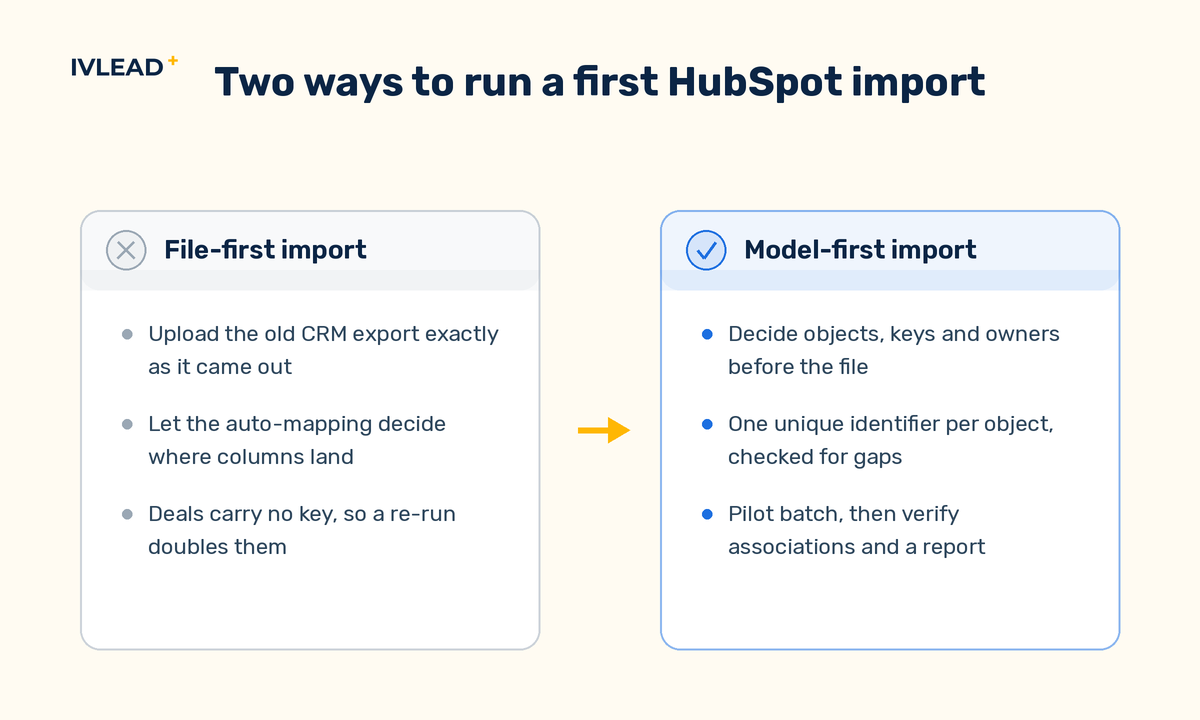
- Deals imported twice. With no identifier, a second deal import doubles the pipeline. Check: compare the deal count on the index page before and after, and add a unique key before any repeat import.
- Values that do not match existing options. An owner who is not a HubSpot user, a deal stage spelled differently from the pipeline settings, or a dropdown value that does not exist in the property will not land the way you expect. Check: compare the distinct values in those columns against the options in HubSpot before you upload.
- Stale values replacing current ones. An old export overwrites job titles, owners or stages your team updated last week. Check: tick "Don't overwrite" on properties your sales team maintains, and spot-check known records after the pilot.
- Shifted dates and amounts. A day/month/year file read with the wrong format produces wrong dates, and the wrong number format can change amounts. Check: open three pilot deals and read Close date and Amount against the source row.
- Domains that fail to match. Company domain name should hold only the bare domain, such as example.com, with nothing after it, so URLs with paths do not behave as keys. Check: before uploading, search the domain column in the spreadsheet for "/" and "http" and trim those values.
- Errors hidden in large files. The mapping guide reports errors from up to 1,000 rows, so a larger file can look clean on that screen and still fail further down. Check: review the errors on the review page after the import finishes and reload only the affected rows.
How does IV-Lead approach a first import?
Our view is that the first import is a data model decision disguised as an admin task, so the work goes into the plan and the file, and the import itself takes minutes.
We import fewer properties than the export contains, because a property nobody reports on or filters by clutters forms and views and adds one more field to keep clean. Every deal and company that also exists in an ERP gets the ERP's own number as a custom property that requires unique values. That number is what later lets a Sales Hub pipeline be reconciled against Priority or any other ERP, and what makes an integration possible without a matching project first. And anything that changes weekly in another system is synced rather than imported, because a hand-refreshed snapshot is wrong between refreshes.
The reasoning is cost. Fixing a duplicated or wrongly associated database after a full import takes longer than planning it did, and the trust a sales team loses in a CRM that shows two of every deal is slower to win back.
If you are planning a migration or a large import and want a second opinion on the file plan before anything goes in, you can book a 30-minute portal audit and we will go through the objects, the keys and the pilot checks with you.
Frequently asked questions
Can I import contacts and companies together and have them associate?
Yes, with a multiple object import. Put both objects in one file so each row holds a contact and its company, or use two files that share a column such as Company domain name. HubSpot uses the shared value to create the association. Association labels, which describe the relationship, need a Professional or Enterprise subscription.
Does setting imported contacts as marketing contacts cost anything?
It can. Importing contacts with marketing status needs Marketing Contacts on a paid Marketing Hub plan, and marketing contacts count toward your marketing contacts billing. Leave contacts you do not plan to email as non-marketing.
Can I update notes, emails, meetings or tasks with an import?
No. Those activities can be created by import but not updated afterwards, so check the content and the associated record before you import them. Calls can be both created and updated.
How do I check that an import did not create duplicates?
Compare the record count on each object's index page before and after the import against the number of rows in your file, then open a few records you know existed before to confirm they were updated rather than copied. If the counts disagree, the identifier was missing or mismatched on those rows.