

Every month HubSpot ships a stack of updates, and every month the same question matters more than "what's new": what's actually worth your team's attention? We run these features in client portals every day, so we read each release through one filter — does it clean up a handoff, close a data gap, or save a rep real clicks?
This month's release is one of the heaviest we've seen this year. Breeze (HubSpot's AI) pushes into nearly every surface — your inbox, your CRM search bar, your mobile meeting prep — while prospecting and automation quietly open up to every paid tier.
Below is our read on the updates most likely to matter to B2B teams, roughly in the order HubSpot rolls them out: marketers first, then sellers, service, admins, and everyone. Everything here is live and global unless we note otherwise.
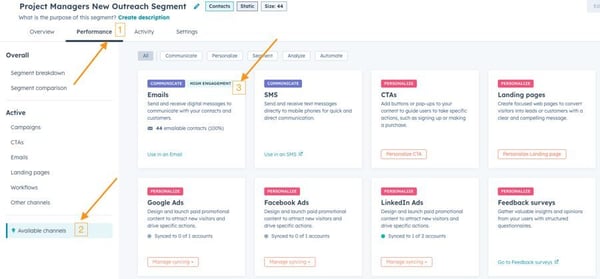
Predict Email Engagement Before You Hit Send
HubSpot now scores any contact segment High, Medium, Low, or Unknown for likely email engagement, based on how those contacts have behaved against your portal's average — so you can pressure-test an audience before a big send.
- See a predicted engagement level on any segment from the Overview or Performance tab, before you build the send.
- Prioritize high-potential segments when sender reputation or a launch is on the line.
- Use it as a final quality check on large audiences, not a reason to send broadly.
Smarter Exclusion Controls in Segments
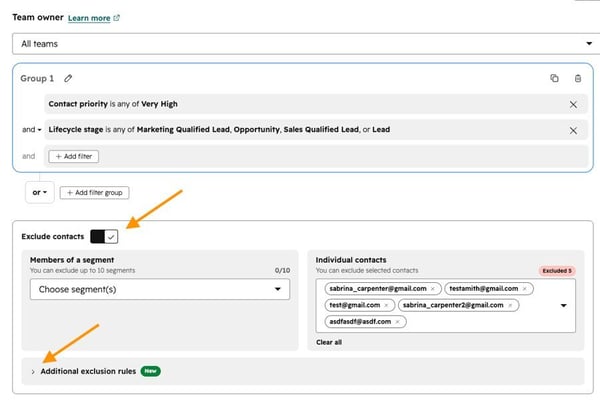
The segment editor now has built-in toggles for the exclusions teams rebuild constantly — unsubscribed contacts, non-marketing contacts, specific domains — and the old 25-contact exclusion cap is gone.
- Flip on standard exclusions (unsubscribed, non-marketing, internal domains) without hand-building a list.
- Exclude more than 25 individual contacts from a single segment.
- Cut the manual work that causes avoidable targeting mistakes.
Your Brand Fonts, Now in the Marketing Email Editor
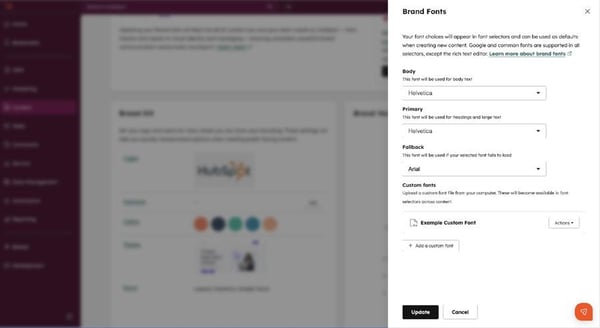
Custom fonts from your Brand Kit now appear in the drag-and-drop email editor's font picker, so you can stay on-brand without custom code.
- Add fonts under Content > Brand, then pick them from any font dropdown in the editor.
- Set a fallback font for clients that don't support custom fonts.
- One caveat worth planning around: custom fonts render in Apple Mail today, while Gmail, Outlook, and Yahoo show the fallback — so design for the fallback too.
Campaign Analytics Move Inside Marketing Studio
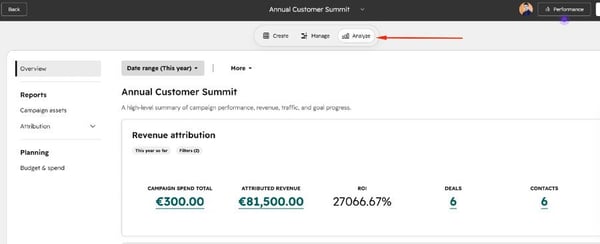
A new Analyze tab brings campaign performance into Marketing Studio, so planning, building, and reviewing results happen in one place instead of jumping between sections.
- Get the same reports as the Performance section, plus a few improvements, without leaving Studio.
- Move from plan to build to review in a single workspace.
- The standalone Performance section stays available if your team prefers it.
WhatsApp Gets Its Own Home in HubSpot
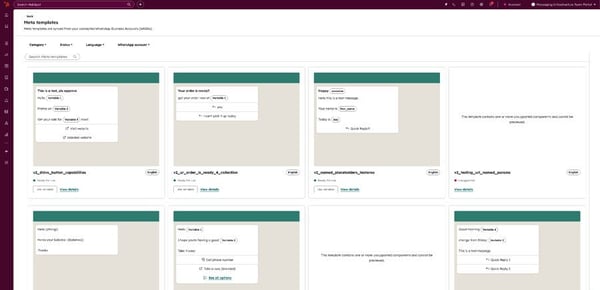
WhatsApp now sits alongside your other messaging channels with a dedicated home, a redesigned template manager, and a full reporting suite — a real upgrade for teams (plenty of them here in Israel) that run day to day on WhatsApp.
- Manage every WhatsApp template in one place, filtered by message type, team, account, and status.
- Track delivery, engagement, clicks, opt-outs, and messaging errors in the new reporting suite.
- Treat WhatsApp as a first-class channel instead of a bolt-on.
Personalize Chatbot Welcome Messages with CRM Data
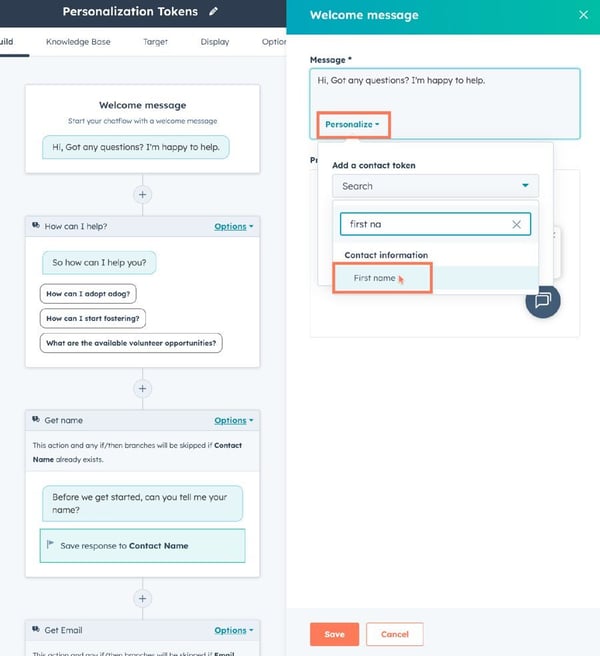
You can now drop CRM personalization tokens — first name, company — straight into a live chat bot's welcome message, so recognized visitors get a tailored greeting from the very first line.
- Add tokens with sensible fallback values for visitors you don't recognize yet.
- Preview and test the greeting with sample values before it goes live.
- Turn it on in any existing rules-based chatflow by editing the welcome message.
AutoCapture Tracks Website Clicks Automatically
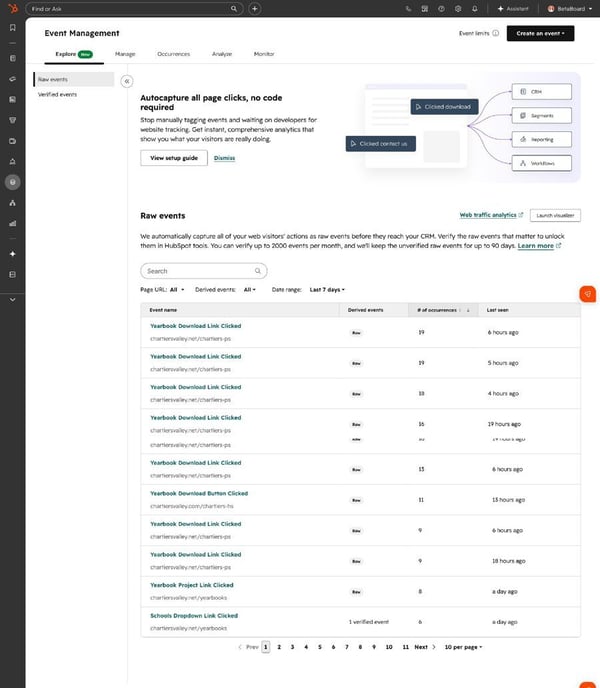
With your HubSpot tracking code active, AutoCapture logs clicks on buttons, links, and interactive elements automatically — no developer, no custom event code.
- Review every captured interaction (element names, URLs, counts) in Event Management.
- Verify events in the visual editor, then use them in lists, workflows, lead scoring, and reporting.
- It backfills up to 90 days, so you're not starting your analysis from zero. (Enterprise.)
Your Mobile Pipeline Finally Matches Desktop
The mobile board view for deals, tickets, and custom objects now mirrors the properties, saved views, and filters you set on desktop — your pipeline looks the same wherever you open it.
- See up to 20 properties on board cards, pulled from your desktop record-card settings.
- Filters and sorting follow your desktop saved views.
- Change what shows on mobile by adjusting your desktop table view.
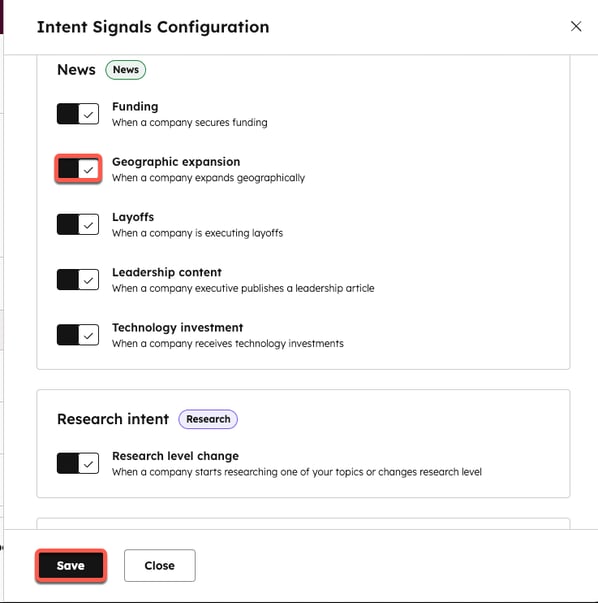
Two New AI Intent Signals for Deals
Two AI-powered signals — Key Stakeholder Identified and Pain Point Mention — read your deal conversations and turn them into structured CRM data you can actually automate against.
- Key Stakeholder Identified flags when a decision maker, champion, or economic buyer shows up in emails, notes, or call transcripts.
- Pain Point Mention captures stated business challenges and maps them to the associated company record.
- Both feed workflows, scoring, and list segmentation. (Uses HubSpot credits.)
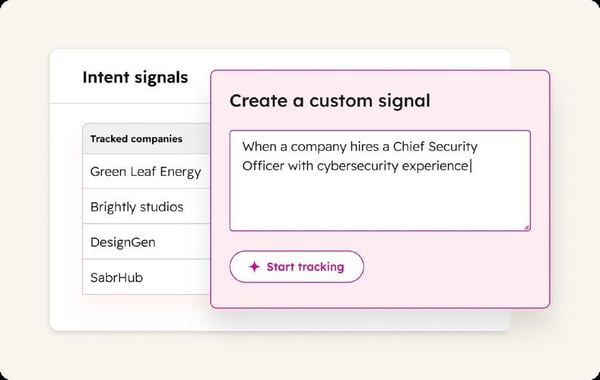
Build Your Own Buyer-Intent Signals in Plain Language
Describe any buying trigger in plain language and HubSpot surfaces matching companies — with cited sources — ready to use in segments, workflows, and lead scoring.
- Track niche, industry-specific triggers that the standard signals miss.
- Preview the companies a signal would match before you activate it.
- Start with a couple of signals tied to real sales decisions rather than a dashboard nobody reads. (Uses HubSpot credits.)
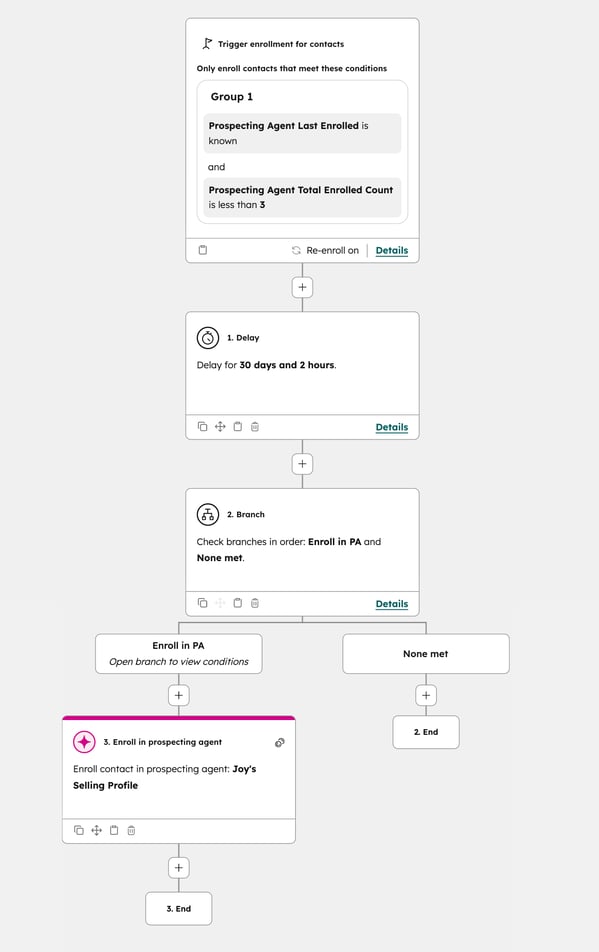
Prospecting Agent Comes to Every Paid Hub
Prospecting Agent is no longer gated behind Sales Hub — any paid portal, Starter and up, can turn it on, which opens AI-assisted prospecting to marketing, customer success, and ops teams too.
- Enable it on Starter, Professional, or Enterprise without a Sales Hub subscription.
- Control who can configure and use it with user-level permissions.
- Our take: access isn't readiness. Get ownership, routing, and required fields clear before you switch it on, or the agent will just surface a messy process faster.
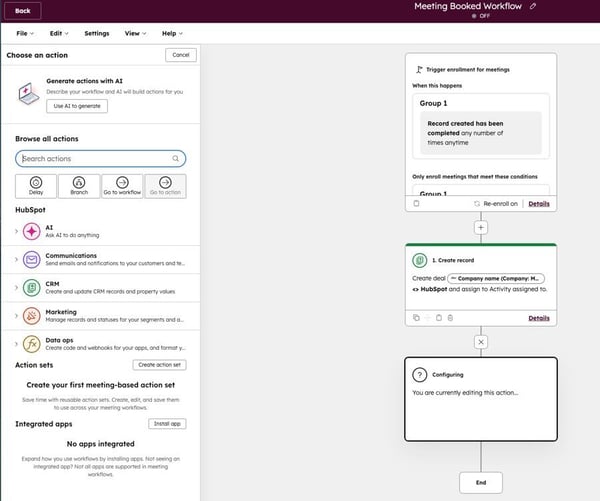
Meetings Can Now Trigger Workflows
Meeting records and properties are now available as workflow triggers and data sources, so automations can fire based on when meetings are booked or updated.
- Trigger a workflow on meeting type, owner, or associated contact.
- Auto-create a deal when a demo is booked, or hand off cleanly after a discovery call.
- Combine meeting data with contact and company data for multi-step automations.
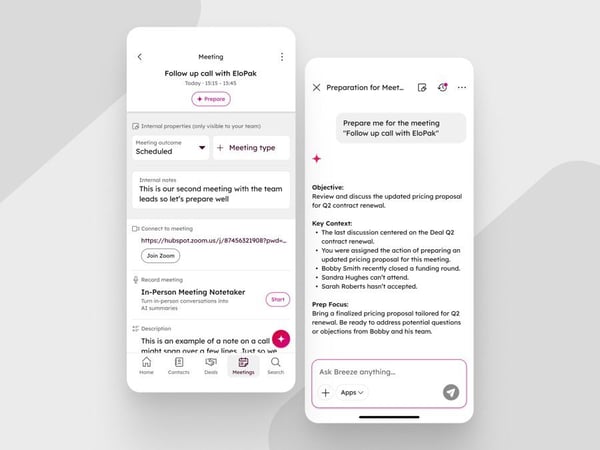
AI Meeting Prep, Now on Your Phone
The redesigned mobile meeting page pulls attendees, join links, linked deals, and notes into one screen — with a new Breeze Prep tab that generates a briefing on demand.
- Tap Prep for a Breeze briefing covering recent calls, emails, deal stage, open tasks, and decision-maker context.
- See everything you need for the meeting, including directions and linked deals, on one screen.
- Edit meeting fields from your phone without opening the full CRM record.
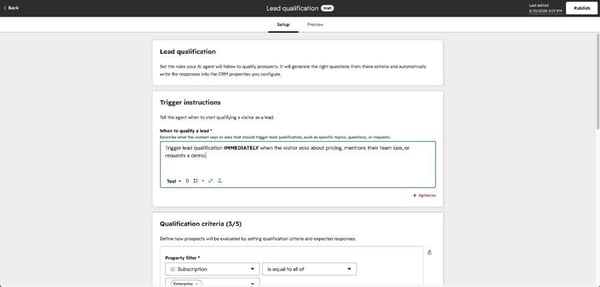
Tell Customer Agent Exactly When to Qualify a Lead
You can now write plain-language rules for when the Customer Agent starts qualifying a lead, replacing opaque defaults with triggers that match how your business actually sells.
- Write triggers like "start when the visitor asks about pricing or requests a demo."
- Configure them under Customer Agent > Train > Actions > Lead Qualification.
- Test triggers in the built-in tester before you publish. (Uses HubSpot credits.)
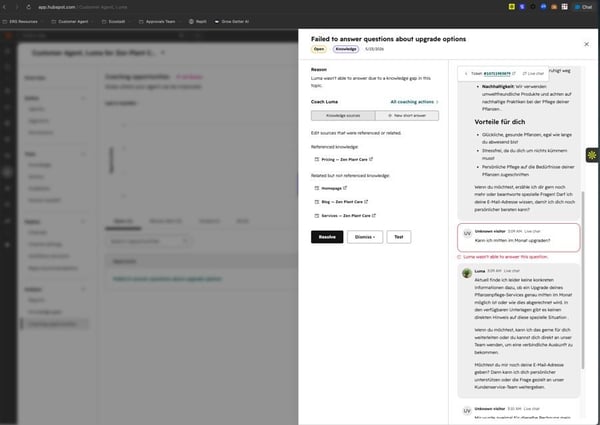
Your Customer Agent Now Tells You Where It's Failing
A new Coaching Opportunities page surfaces patterns in unresolved conversations, escalations, and negative feedback — a prioritized list of where your AI agent needs work.
- Jump straight to the conversations where each issue showed up.
- Coach the agent, test the change, then resolve or dismiss the opportunity.
- It replaces the old Knowledge Gaps view and will cover more signal types over time.
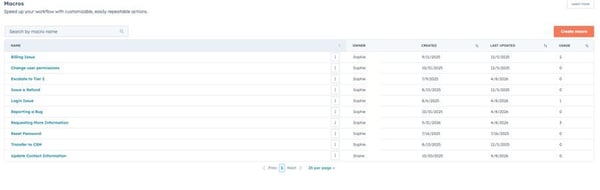
One-Click Support Macros in Help Desk
Macros let reps send a reply and trigger several follow-up actions — update status, owner, priority, enroll in a workflow — in a single click, collapsing a multi-step ticket routine.
- Bundle a canned message with property updates and workflow enrollment.
- Share macros across the whole team or with specific users and teams.
- Apply one from the reply editor with Send and apply.
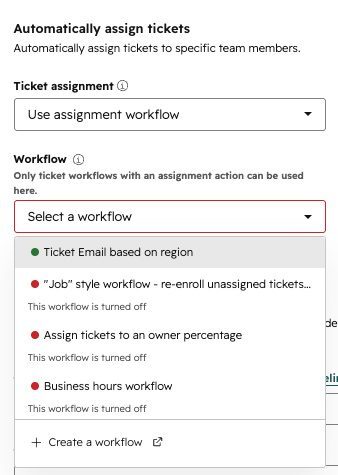
Route Help Desk Tickets Through Workflows
A new "use assignment workflow" option lets incoming tickets flow into a workflow that handles complex assignment logic — VIP routing, language-based assignment, conditional handoffs to the Customer Agent — instead of workarounds.
- Handle multi-step routing rules from a single workflow.
- Point a Help Desk or chat channel at the workflow that owns assignment.
- Get full transparency in assignment details and workflow logs.
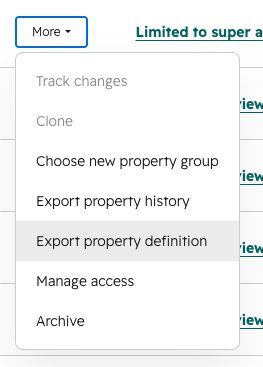
Export a Property and See Everywhere It's Used
Exporting a property definition now includes direct links to every form, workflow, and asset that uses it, plus workflow on/off status and access info. For anyone auditing or cleaning a portal, this is a quiet gift.
- Get a row per usage, each linking straight to the asset in HubSpot.
- See which workflows using the property are on or off.
- Share the export so stakeholders can review usage without app access.
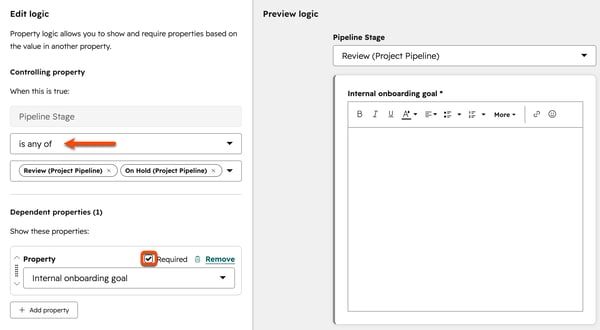
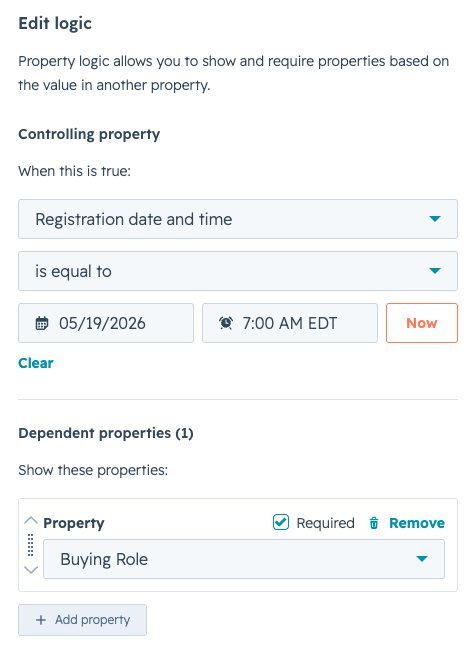
Let Dates Drive Your Conditional Fields
Date and datetime properties can now trigger dependent fields, so forms and records surface or require the right information based on a date automatically.
- Surface a "renewal terms" field only after a contract end date is set.
- Require a "reason for delay" once a due date passes.
- Set it up under Settings > Properties > Conditional logic with any date field as the control.
Preview a Merge Before You Commit It
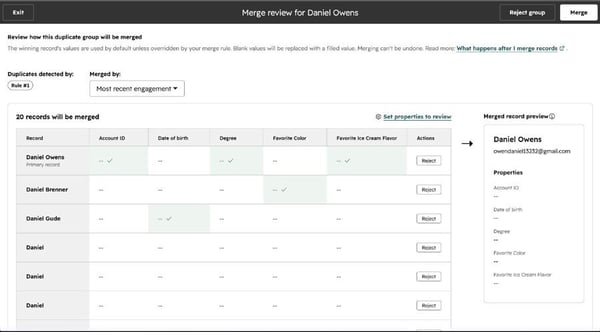
With custom duplicate detection rules, you can now preview the full duplicate group and choose which values win before you merge — fewer regretted merges, cleaner data.
- See every record in the group and the rule that surfaced it.
- Add properties to the preview and pick which values carry over to the winning record.
- This preview is set to become the default merge experience.
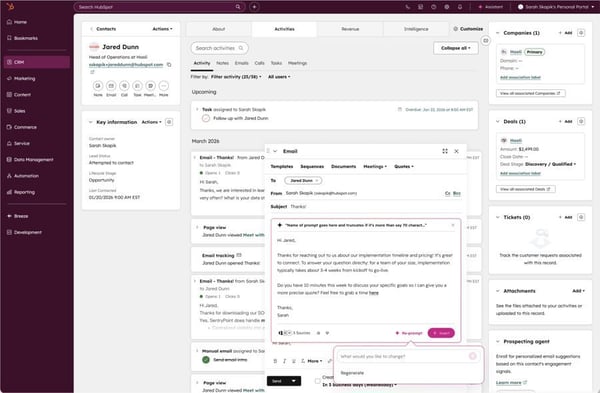
Breeze Now Drafts Emails Inside the CRM Composer
Breeze Assistant lives in the CRM email composer now, so you can generate and refine an email inline without leaving the window you're already writing in.
- Trigger it by typing "/" or clicking the Breeze button in the toolbar.
- Generate a draft or a suggested reply, re-prompt to refine, then insert it.
- The value isn't the first draft — it's the time you don't spend rebuilding account context. (Web only.)
More Workflow Actions, in Every Workflow Type
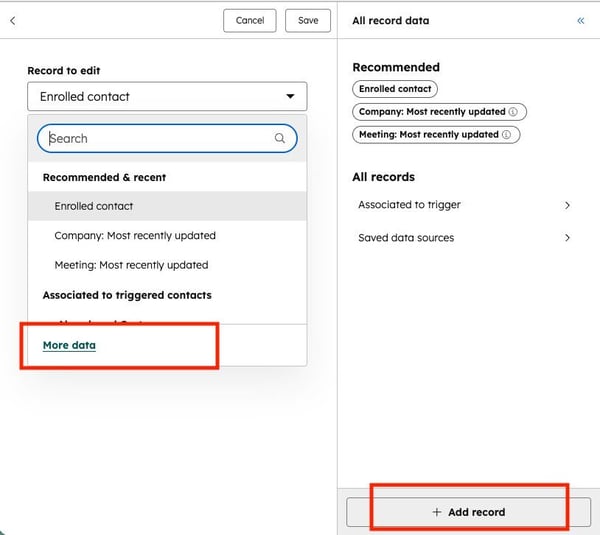
A set of workflow actions is now available in every workflow type and can act on associated or custom-sourced records — so you build one workflow instead of several.
- Use actions like "Add to Ads Audience" inside company and deal workflows.
- Choose whether an action hits the enrolled record or its associated records.
- Reach custom data sources beyond the enrolled object with "More Data."
The Analytics Suite Comes to Starter
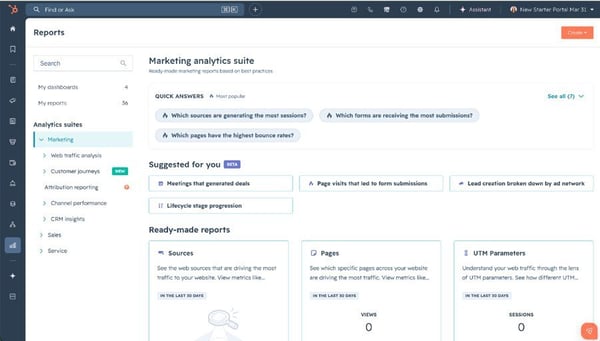
Starter customers now get 50 pre-built report templates across Marketing, Sales, and Service — real reporting without building from scratch.
- Browse 50 ready-to-use templates, organized by category.
- Open a template, customize it, and save it to a dashboard.
- A genuine step up for smaller teams starting their reporting. (The custom report builder still needs Professional or Enterprise.)
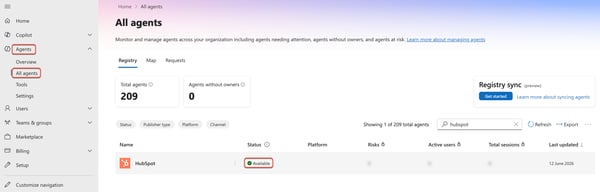
Reach HubSpot from Microsoft 365 Copilot
You can now pull HubSpot data and take actions from inside Microsoft 365 Copilot — deal summaries, ticket queues, CRM context — without switching tools.
- Ask Copilot for deal summaries or open tickets and it fetches live HubSpot data, respecting your permissions.
- Admins enable the connector once; users then connect their own HubSpot account.
- Your HubSpot data is never indexed into Microsoft 365.
Breeze Projects Becomes a Real Workspace
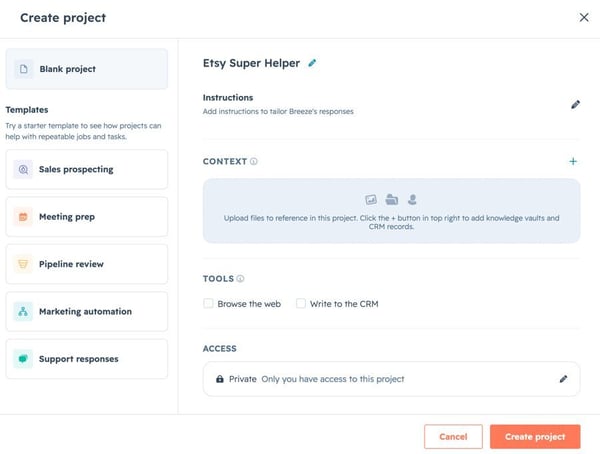
The redesigned Breeze Projects lets you upload files, @mention CRM records, and use built-in tools like Search the Web and Write to CRM — with context carried across every thread in the project.
- Upload PDFs, docs, spreadsheets, or images for Breeze to reference across threads.
- @mention any contact, company, deal, or ticket for guided context.
- Create or update records straight from the conversation with Write to CRM.
Not Sure Which of These to Switch On First?
That's usually the real question — not what's new, but what's worth turning on in your portal this month. We'll look at your HubSpot together and tell you straight whether IV-Lead is the right fit. No deck. No pitch.