

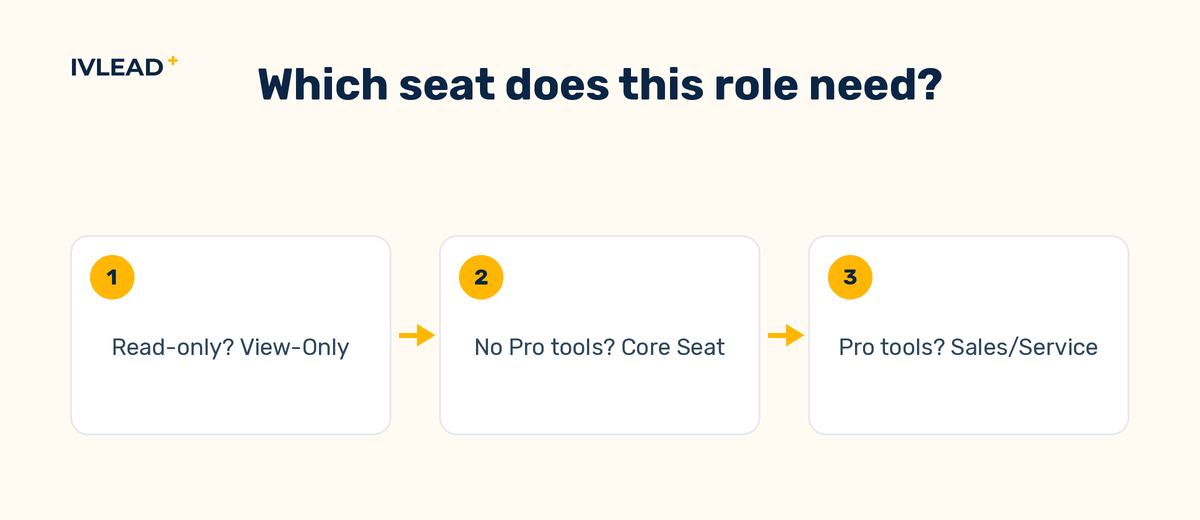
On the seats-based pricing model, HubSpot bills by seat. A seat decides which hubs a user can open; permissions decide what they can view, edit or delete. To avoid idle seats and over-granted access, decide role by role who edits data before buying, put pure readers on the free View-Only Seat, assign permissions by role, and check the Seats tab against last active dates before each renewal.
Key takeaways
- View-Only Seats are free and unlimited on every paid tier, so the first question for each user is whether they change data or only read it.
- Removing a user does not lower the bill. The seat stays in the subscription until you remove it on the Seats tab, and the removal takes effect from the next subscription term.
- Seats and permissions are set separately. Changing a seat leaves the permission toggles in place but changes what they can reach, so each person needs both decisions made on purpose.
- Saving reusable permission sets needs Enterprise. On Professional, presets and templates help; on every tier, keep a written role matrix.
What is the difference between a seat and a permission in HubSpot?
A seat is part of your subscription and controls which hubs and tools a user can reach. A permission is a toggle in the user's settings that controls what they do there: view, edit, delete, change settings. Every user on a paid tier holds a seat, even if it is the free one, and only paid seats appear on the invoice.
The two are independent, which is where portals get messy. Move a rep from a Sales Seat to a Core Seat and the permission toggles stay as they were, but some Sales Hub features behind them stop working. Tighten permissions on a user with a paid seat and you keep paying for the seat. For the clicks, see HubSpot's manage seats article.
Which seat types exist, and which ones are free?
The short version for accounts on the seats-based pricing model:
| Seat type | What it gives | Cost and availability |
|---|---|---|
| View-Only Seat | Views records, dashboards and reports; logs notes. No editing, saved reports, settings or email logging. | Free and unlimited on every paid tier. |
| Core Seat | Core tools of the hubs you own; the paid seat on Sales Hub and Service Hub Starter. On Revenue Hub it views quotes but cannot create them. | Paid. |
| Sales Seat | Everything in Sales Hub Professional or Enterprise. | Paid; Professional and Enterprise only. |
| Service Seat | Everything in Service Hub Professional or Enterprise. | Paid; Professional and Enterprise only. |
| Revenue Seat | Everything in Revenue Hub Professional or Enterprise. | Paid; Professional and Enterprise only. |
Two more free seats exist: the Partner Seat, for staff of an eligible HubSpot Solutions Partner working in your account, and the Developer Seat, which opens only the developer platform and can't sit alongside any other seat or Super Admin rights.
The seats-based model covers accounts and subscriptions created on or after March 5, 2024. Older accounts that have not migrated still buy Sales or Service paid seats, but assign them through the Sales Access and Service Access toggles in the user's permissions, and see no seat step when creating a user. The permission advice below applies to them; the View-Only and Core seat advice does not until they migrate.
What should you decide before assigning any seats?
Seats are easy to add mid-term and only come down at renewal, so answer these before buying.
Does this person change data or only read it?
Executives, finance and most cross-functional stakeholders read dashboards and occasionally open a record. They belong on a free View-Only Seat (a View-Only user can even hold billing admin permissions, which covers finance). The exception is email. A View-Only user cannot log or track emails, and switching an existing user to View-Only turns email logging off, so anyone whose customer conversations should land on the record needs at least a Core Seat with personal email access on.
Which tier features does the role use?
On Sales Hub Professional or Enterprise, decide per role whether someone needs the full Sales Seat or only the CRM tools a Core Seat opens. A customer success manager who updates records and logs calls may be fine on Core; an SDR running the outbound tooling needs Sales. Deciding per role means the answer survives staff changes.
How do you set up permissions without editing users one at a time?
When you edit a user's permissions on a seats-based account, HubSpot asks how to set access: use the seat's default permissions, make the user a Super Admin, start from a job-function template, start from scratch, or apply a custom permission set. Seat defaults suit View-Only readers and Core users with no special restrictions; check once what the default grants and treat it as your baseline. Beyond that, the right choice depends on your tier.
- Enterprise: build one custom permission set per role (for example "Account executive", "Customer success", "Read-only stakeholder"), save it, and assign users to it. When the role changes, you edit one set.
- Professional and Starter: saved permission sets are not available. On Professional, assign users to presets during setup where they fit the role. Start each new user from the matching template where your tier offers one, and keep a written role matrix outside HubSpot that lists which toggles each role has. Without that document, each admin rebuilds the role from memory and the portal drifts.
Within a role, the main lever against over-granting is record access scope: every record, the team's records, or only the user's own, plus who may export and bulk-delete. Put those scopes in the matrix with the tool toggles; a rep who can edit every deal is the usual route to a messy pipeline. Options vary by object and tier, so confirm them in your own permissions screen.
For quarterly clean-ups on seats-based accounts, the user import has an "Update existing Users only" option, in beta at the time of writing, and the file can carry Seats on any paid tier, Teams and Managers on Professional and Enterprise, and Permission sets on Enterprise. On Enterprise, a whole team's seats and permission sets can be corrected in one upload; on Professional the file fixes seats, teams and managers, but permissions still need editing per user.
Whatever the tier, reserve Super Admin for two people: the portal owner and one backup. A Super Admin has full control of the portal, and adding or removing seats needs Super Admin or the Modify billing permission. List who holds either at each quarterly review, since any of them can raise the invoice in a few clicks. The add and remove users article shows the clicks for creating users and applying permissions.
What does a cleaned-up seat allocation look like?
Take a hypothetical software company on Sales Hub Professional where 19 people use HubSpot and nobody else has a user. The head of sales asked for "a seat for everyone near revenue", so 20 Sales Seats were bought: 19 assigned, one unassigned since a rep left. A review nine months in, on the Seats tab, finds three seats held by executives who only open dashboards and five held by people who edit records but never use the Professional sales tooling.
A rebuilt allocation could look like this.
| Role | People | Seat | Permissions |
|---|---|---|---|
| Account executive | 6 | Sales Seat | Sales template; edit contacts, companies and deals; no delete, no settings access |
| SDR | 3 | Sales Seat | Same, limited to records they or their team own |
| Head of sales | 1 | Sales Seat | Sales manager template, team reporting, no Super Admin |
| RevOps admin | 1 | Sales Seat | Super Admin |
| Customer success | 2 | Core Seat | Edit contacts and companies, log emails and calls, view deals |
| Marketing | 2 | Core Seat | Edit contacts and companies; view-only on deals |
| COO | 1 | Core Seat | Backup Super Admin |
| CEO, CFO, VP Product | 3 | View-Only Seat | Read dashboards; CFO granted billing admin |
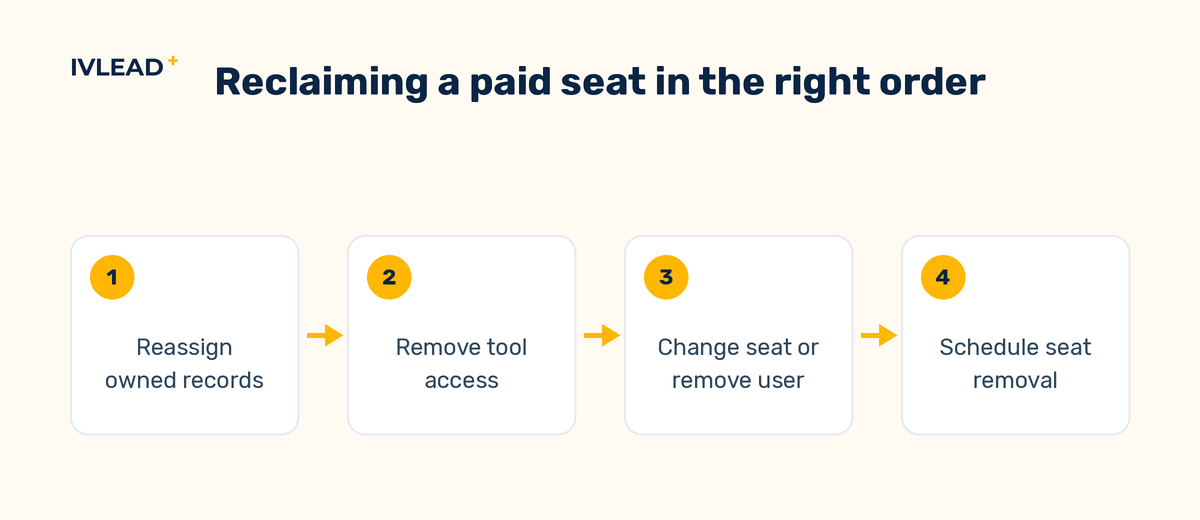
The order matters, because only unassigned seats can be swapped or removed. First, move the three executives to View-Only, which leaves four unassigned Sales Seats (three freed plus the vacant one). Second, swap those four for Core Seats: a Core Seat costs less than a Sales Seat, so the swap can cover the five Core Seats the plan needs, with any value left over becoming HubSpot Credits (if it falls short, buy the missing Core Seat at checkout). Third, move the five customer success, marketing and COO users to Core, which frees five more Sales Seats, and schedule those five for removal. The result: 11 Sales Seats and 5 Core Seats assigned, three people on free View-Only, and the five freed Sales Seats coming off at the start of the next subscription term. The table becomes a one-page role matrix, with the renewal date on it, and the checklist for every new hire.
Which limits and trade-offs affect your bill?
- Seat counts are locked until renewal. The total can never drop below your subscription's minimum commitment, and once seats are bought the count holds until renewal. If you are upgrading from the free tools, the free seats disappear at upgrade, so count everyone who needs a seat before checkout. A removal scheduled today lands on the next term's invoice; a seat added mid-term is paid for until renewal.
- A scheduled removal can be quietly cancelled. Assign that seat to anyone before the removal date and HubSpot drops the scheduled removal. One helpful admin onboarding a contractor can undo your cost cut without noticing.
- Swaps are one-way towards credits. A Super Admin can turn unassigned seats into a different seat type, HubSpot Credits, or a mix, without contacting HubSpot. Swapping into pricier seats means paying the gap at checkout; leftover value becomes credits, and credits never turn back into seats.
- A single Core Seat transfers with Super Admin attached. On an account with one Core Seat, the Seats tab lets you transfer it to another user, and a Super Admin's rights move with it. Check who ends up as Super Admin on a small Starter portal.
- Removing a user removes access, not ownership. Reassign owned records first, otherwise owner-based reports and routing point at someone who no longer exists, and remove any Sales Hub or Service Hub tool access from a paid-seat holder's permissions before removing them.
What goes wrong, and how do you check?
- Seats assigned by title. Symptom: paid seats on people who only read. Check: on the Seats tab, look for paid seats with no activity in 60 to 90 days, then filter contact and deal views by Last modified by to see whether those users edited any records in the period.
- Users removed, seats kept. Symptom: the Seats tab shows more purchased than assigned seats, month after month. Check: compare purchased to assigned per seat type, and schedule the gap for removal or a swap.
- Invited, never active. Symptom: a seat assigned to someone who never logged in. Check: the Seats tab shows invite status and the Pending invites tab lists them; resend or move the seat.
- Permission drift. Symptom: two people in the same role can do different things, usually because one asked for an extra toggle during a project. Check: once a quarter, compare each user's permissions to the role matrix.
- Offboarding in the wrong order. Symptom: deals still owned by a departed employee and a seat still billed. Correct order: reassign owned records, remove tool access (reactivating first if needed), change the seat or remove the user, then remove or swap the seat.
Why does IV-Lead default everyone to View-Only?
Our view is that everyone should start on a View-Only Seat and earn a paid seat by showing a task that needs one. The cost of being wrong is asymmetric: a reader who turns out to need editing rights is upgraded in a moment, while a paid seat bought for someone who never edits is paid for until renewal. The same logic applies to permissions. A rep who cannot delete asks an admin and waits; a rep who can bulk-delete wipes a batch of deals and someone spends the afternoon restoring them.
We also treat the seat count as a renewal decision: about two months before renewal, review the Seats tab against last active dates and the next term's hiring plan, and set the contracted count from that. Swaps and scheduled removals handle small corrections in between. The Sales Hub service page describes how seat and permission design fits into the wider setup work.
If you would like a second pair of eyes on your Seats tab before renewal, book a 30-minute portal audit and we will go through seat assignments, Super Admins and permission drift with you.
Frequently asked questions
If I remove or deactivate a user, does my HubSpot bill go down?
No. Removing a user frees the seat but leaves it in your subscription; deactivating a user does not even free it. Deactivate when the person may return or their records are not yet reassigned; remove them once they have left for good. To free a deactivated user's paid seat, reactivate them, change the seat to View-Only, then deactivate again. The bill changes only when you remove the unassigned seat on the Seats tab, and that takes effect from the next subscription term.
Can I reduce HubSpot seats in the middle of a contract?
Not below your minimum commitment, and not before the next renewal once seats have been bought. Mid-term you can swap unassigned seats for a different seat type or for HubSpot Credits, and schedule removals that take effect from the next subscription term.
Do HubSpot permission sets require Enterprise?
Saving a reusable permission set requires Enterprise. Other tiers can start from a job-function template where one is offered, so role-based access is possible on any tier if you document the roles outside HubSpot.
Does a developer need a separate Developer Seat?
Not necessarily. A Developer Seat is free but can't sit alongside any other seat or Super Admin rights. If the person already holds a seat, a Super Admin can grant them the Developer tools access permission instead.