
HubSpot continues to move fast in 2026, and April’s product updates are a clear reflection of that momentum. This month’s release brings a strong focus on operational efficiency - helping teams reduce manual work, act faster on real-time data, and maintain consistency across their processes.
From deeper insights into personalized marketing emails to expanded AI capabilities, these updates are designed to streamline how marketing, sales, and service teams operate inside HubSpot.
In this post, we’ll walk through the most important updates from April and what they actually mean for your team in practice.
View personalized emails on contact records
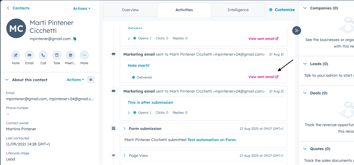
Your team can now view the exact version of a personalized marketing email each contact received, directly from their contact record timeline, closing the visibility gap between what was sent and what the team can see.
- Click “View sent email” on any email activity in a contact’s timeline to open the fully rendered, personalized version.
- Verify that dynamic content, smart rules, and AI-generated text are rendered correctly for each recipient.
- After the date of sending, the personalized view will be available for 30 days.

Send WhatsApp message templates at any time
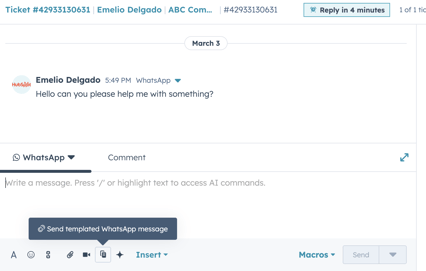
Previously, WhatsApp message templates could only be used after the 24-hour session window had expired, but now teams can send them at any time during an active conversation.
- Using the template icon in the bottom toolbar of a conversation, you can send a templated WhatsApp message at any time.
- Rather than waiting for the session window to close, simply select the template you want and click Send Message.

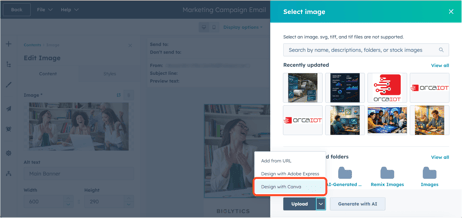
Complete Canva Design Experience in HubSpot
For HubSpot users, the Canva app now includes Canva's full editing suite, including AI design tools, brand controls, and collaboration features, with assets flowing directly back into HubSpot.
- Use Ask Canva to get real-time design assistance or generate on-brand images and videos
- A Brand Kit allows your entire team to access approved colors, fonts, and logos.
- Easily create assets in Canva and return them to HubSpot for distribution and measurement

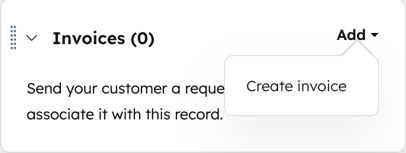
Create one-time invoices from quotes or deals with workflows
The "Convert to Invoice" workflow action automatically creates a draft one-time invoice from a quote or deal, replacing the manual step of creating invoices after deals close.
- Automate the creation of invoices when quotes are published or deals meet your criteria.
- The invoices are created in draft status in a consistent format, ready for review before they are sent.
- Recurring line items are automatically converted to one-time line items on the resulting invoice.

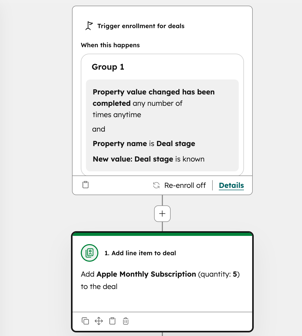
Add line items to deals via workflow actions
Using a new workflow action, you can automatically attach line items to deals when a trigger fires, replacing manual product entry and ensuring consistency across your organization.
- When the workflow runs, the line item is automatically added to the deal after you select a product from your library and set a quantity.
- Reduce human error in deal creation by using the same products and quantities every time.
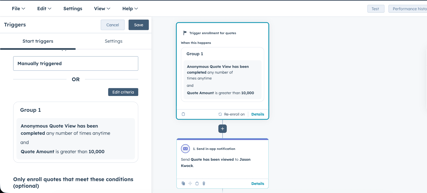
Create workflows based on quote activity
By building workflows based on quote events like views, signatures, and updates, your team can act in the moment without manually monitoring quotes.
- Trigger a workflow when a prospect views, signs, or updates a quote.
- Set up notifications or follow-up actions automatically when key quote events occur.

Customize your HubSpot sales toolbar in Gmail
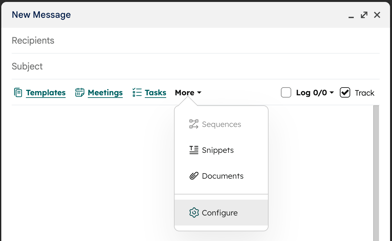
In Gmail, you can now reorder the tools in your HubSpot sales toolbar to fit your workflow, reducing clutter in the compose window.
- Compose window's Configure option provides access to adding, removing, and reordering toolbar tools.
- Changes are saved automatically and take effect immediately.
Meetings in workflows
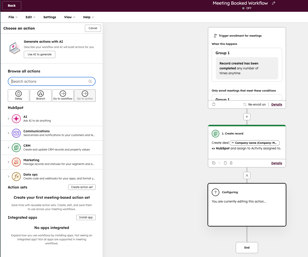
You can now automate actions based on meeting bookings using triggers and data sources in workflows.
- When a meeting is created, trigger a workflow that filters by meeting type, associated contact, company, or other criteria.
- Automate your sales or service processes using meeting properties in workflow conditions and actions.
- Whenever a specific meeting type is booked, automatically create downstream actions such as a deal record.

Quick filtering & "Use in" actions for intent signals
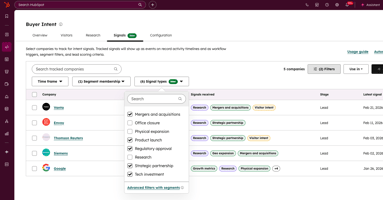
You can now filter tracked companies by specific intent signal types and instantly convert those filters into segment criteria or workflow enrollment triggers, replacing manual signal-based segment and workflow setup.
- Filter tracked companies by one or more signal types, such as funding rounds or job changes, directly within the Signals tab.
- From your current filter criteria, click "Use in" to instantly create a segment or workflow.
- Companies that meet your workflow trigger criteria will automatically be enrolled.

Use workflows to create a quote
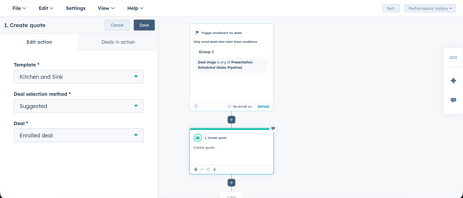
A workflow action can now automatically generate a draft quote based on a specific template.
- Add a "Create Quote" action to any deal-based workflow, triggered by the deal properties you define.
- Using the quote template of your choice, draft quotes are generated automatically without the involvement of a rep.
- Contract-based workflows can also be used to create renewal quotes, such as when a contract is about to expire.
Note: The Renewal Quotes action is only available in the Contracts Private Beta.

Calling now supported in Chrome extension
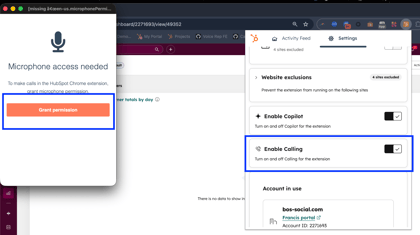
HubSpot calling users can now manage their connection directly through the Chrome extension, eliminating the need to open a separate browser window to make or receive calls.
- Keep your calling connection open in the background without opening another tab.
- Utilizes both HubSpot Calling and compatible third-party calling apps.
- Enable calling in the extension settings and grant microphone permission to get started.
Note: Third-party apps must be compatible with the Calling Remote and Tab.

Edit paid invoices after payment
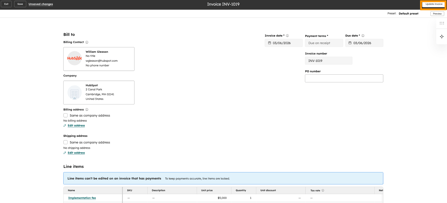
HubSpot now allows teams to edit line items on paid or partially paid one-time invoices.
- You can edit non-balance-changing fields such as PO numbers, notes, recipient emails, and billing details on paid invoices.
- Adjust line items on paid invoices and HubSpot will automatically recalculate the balance due and invoice status.
- Customers can complete payment using the existing Pay Now flow if an edit creates a new outstanding balance.

Rotate record to owner action in conversation-based workflows
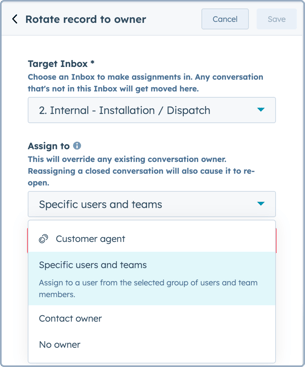
Using a new workflow action, support teams can automatically route conversations to the right owner and inbox.
- Automatically move a conversation to a target inbox and assign it based on inbox access, contact owner, or specific users and teams.
- Conversations are routed according to inbox permissions, so only users who are able to respond to them see them.
- When a conversation is moved and assigned, system messages and notifications are automatically posted.

You can now select the languages the Customer Agent interacts in
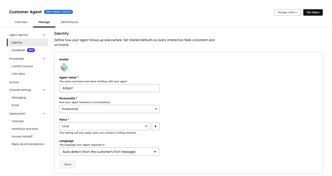
Your Customer Agent can now respond in specific languages, preventing your business from inadvertently signaling to visitors that you offer support in languages you don't actually offer.
- In the Customer Agent identity page, choose a language from the Language dropdown.
- The agent will default to detecting the language from the customer's first message if no languages are selected.
- When you select specific languages, you help customers understand what languages you support.

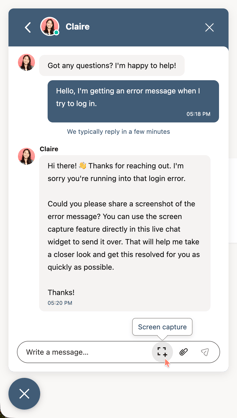
Screen capture button in the chat widget
Users on desktops and tablets can now take and attach screenshots directly from the chat widget, eliminating the need to take, find, and upload screenshots separately.
- Using the new screenshot icon in the chat widget, desktop and tablet visitors can take and attach screenshots without leaving the conversation.
- When capturing and attaching screenshots, the browser's built-in functionality asks for permission.
- Enable the feature in your Help Desk or inbox settings for the Chat Channel in Web Chat.

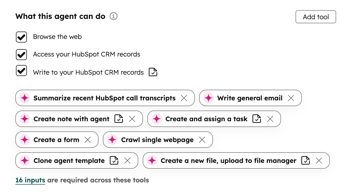
Agent controls for CRM tools
Admins now have separate Read and Write controls for each CRM tool in agent configuration, with a clear per-tool toggle to require or skip human approval before write actions are executed.
- View distinct Read and Write checkboxes for each CRM tool in the agent configuration page under "What this agent can do."
- Turn on or off "Require review before running this tool" for each write tool to determine whether approval is required.
- The approval controls are explained directly in the settings interface; no further configuration is required.

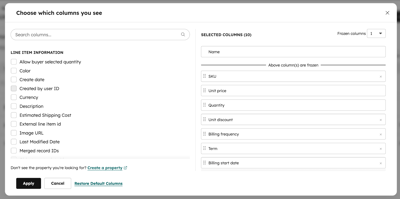
Admin-defined column defaults for line item editors
It is now possible for Super Admins to set default line item columns for the entire portal, replacing previous system defaults and preventing large teams from seeing inconsistent column views.
- Once you set default columns, they are applied to all new users and to anyone who hasn't customized their view yet.
- As column defaults apply per editor type, changes in Deals won't affect Invoices or Subscriptions.
- Users can still personalize their own view and restore the admin default at any time.
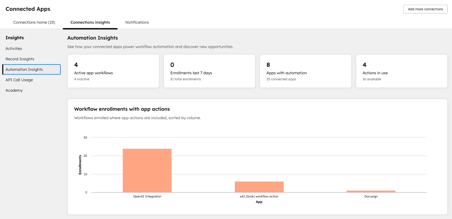
New insights for connected apps
In Connected Apps, the new Connections Insights tab gives you an overview of how all your integrations are performing across HubSpot, replacing the need to navigate between multiple tools.
- App involvement in automation, including active workflows, actions in use, and unused workflow actions.
- With Record Insights, you can see how connected apps create and update CRM records over time.
- You can take action directly from the insights view by following the links to the relevant HubSpot areas.

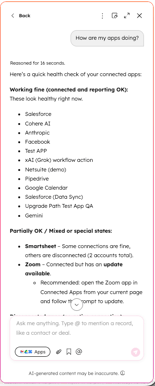
Connected apps intelligence in Breeze Assistant
HubSpot's Breeze Assistant can now answer questions about your connected apps and integrations directly in HubSpot, replacing the manual task of digging through settings screens, logs, and documentation.
- In plain language, ask Breeze Assistant about app status, sync errors, permission gaps, configuration issues, and notification settings.
- Analyze app activity history, audit permissions, and run diagnostics based on data from your portal
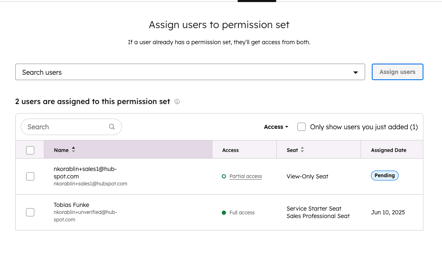
Permission sets & seats are now decoupled
With permission sets and seats no longer tightly linked, admins can assign any user to any permission set, removing errors and unexpected removals.
- A user's permissions and seat combination determine how much access is granted by HubSpot
- Users have clear indications of whether they have no, partial, or full access to a permission set and why.
- A permission set assignment persists through seat changes, and access is automatically updated.
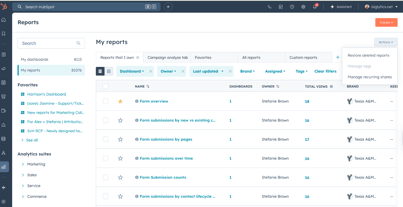
Centralized management for reports and dashboards
Admins can now manage all recurring report and dashboard shares from one central view.
- To find exactly what needs attention, filter recurring shares by asset, owner (including deactivated users), and delivery type.
- Select one or more shares to delete or reassign ownership in bulk.
- Reports and dashboards can be accessed directly from reporting settings or from reporting settings.
Note: You must be an admin, the owner, or have editing rights on the report or dashboard to manage shares.
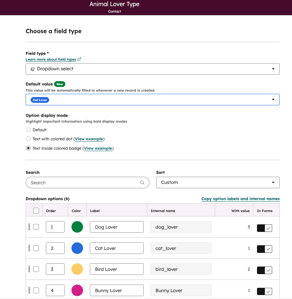
Set default property values
HubSpot admins can now set default values for properties, pre-filling those values whenever a new record is created, reducing data gaps and repetitive manual entry.
- The Field type tab in Property settings allows you to set a default value for any supported property type.
- Whether records are created manually, through workflows, or through APIs, defaults apply consistently.
- Users can still override the default value during record creation if needed.
Property history & association history improvements
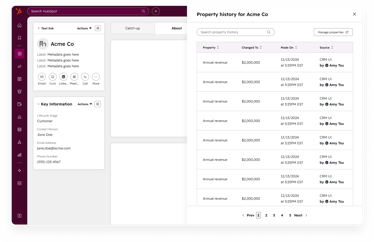
History tracking on HubSpot record pages has been updated with two new features: property history now opens in a side panel so you stay in context, and association history now captures changes to association labels over time.
- A new side panel displays property history without navigating away from the record, allowing you to search, sort, and manage history in context.
- Find out which labels were applied or removed as well as when each change occurred by filtering association history by object type.
Individual user permissions for views
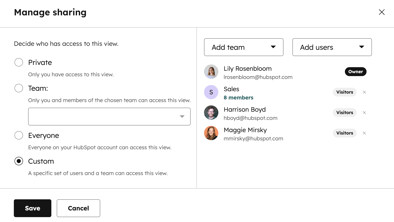
Custom views can now be shared with specific individual users without opening access to the entire company or team, making it easier to collaborate across departments.
- Share any view you own with specific colleagues using the new "Custom" sharing option.
- Don't grant access to people who don't need it from other departments or teams.
- You can access sharing controls from any object index page or All Views listing page.
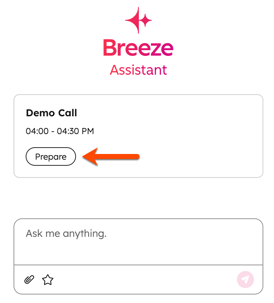
Ask Breeze Assistant about product updates
From anywhere in the app, you can ask Breeze Assistant questions about product updates and get relevant insights.
- You can ask questions like “What new features were released this week? ” in plain language.
- Get summaries tailored to your subscriptions with direct links to relevant product updates