To add a parent or child company in HubSpot, open the company record, click Add on the Companies card in the right sidebar, select the other company, then apply the Parent company or Child company association label. The labels come with every subscription. Each child can sit under only one parent, while a parent has no limit on children, so settle the structure before you label anything.
Key takeaways
- Parent company and Child company are default association labels on the company-to-company association, included on all HubSpot plans.
- The label applies to the company you select, seen from the record you are on. Reverse it and the whole tree inverts.
- HubSpot allows one parent per child, so joint ventures and shared subsidiaries need a decision before the import.
- The label describes the relationship. Do not promise that the parent record totals its children's deals until you have tested it in your portal.
When should you model a parent-child hierarchy in HubSpot?
Use the labels when the group structure changes a commercial decision, usually because more than one entity of the same group buys from you, or because one account owner is responsible for the whole group. The hierarchy then answers the question people actually ask: what is our total relationship with this group?
When not to use it
Do not use parent and child labels for relationships that are not ownership. An agency and its clients, or a distributor and its end customers, are related without being owned. Label them as parent and child and the one-parent rule blocks you the first time a distributor's customer buys through a second distributor, while any report built on the tree counts unrelated companies as one group. A custom association label such as Distributor fits better. Custom labels are not included on every HubSpot plan, so check your subscription; without them, record the relationship in a company property.
What to decide first
- What a company record represents. If your ERP, for example Priority, has one customer number per invoiced entity, the child records should match those entities one to one, and the parent stands for the group, which has no invoice of its own.
- Where deals attach. The usual rule is that a deal belongs to the entity that signs the order, so the parent stays free of deals that belong to a subsidiary.
- Who owns the parent. If the group has one account owner, put that owner on the parent and on every child, so views and routing stay consistent.
- How many levels you need. Multi-level chains are possible, since HubSpot's merge guidance describes a company that is the child of one record and the parent of another. Keep to two levels unless the business needs more; every extra level is another place for the tree to drift.
- Which system owns the structure. If your portal syncs with Salesforce, which has its own parent account field, decide whether Salesforce or HubSpot is the source for the hierarchy before anyone labels a record, or the two systems will overwrite each other.
Write these rules down first; a hierarchy built by reps with different ideas of what "parent" means is worse than none, because people will trust it.
How do you add a parent or child company to an existing company record?
The manual route works from either end of the relationship. The steps below follow HubSpot's knowledge base article on parent and child companies, which is the reference if the interface changes.
- Click More, then CRM, then Companies (or CRM, then Companies if More does not appear), and open the company you want to work from.
- In the right sidebar, find the Companies card and click Add.
- Find the other company in the search, select it, and click Next.
- Click Add association label and choose Child company if the company you just selected sits below the one you are on, or Parent company if it sits above.
- Click Save.
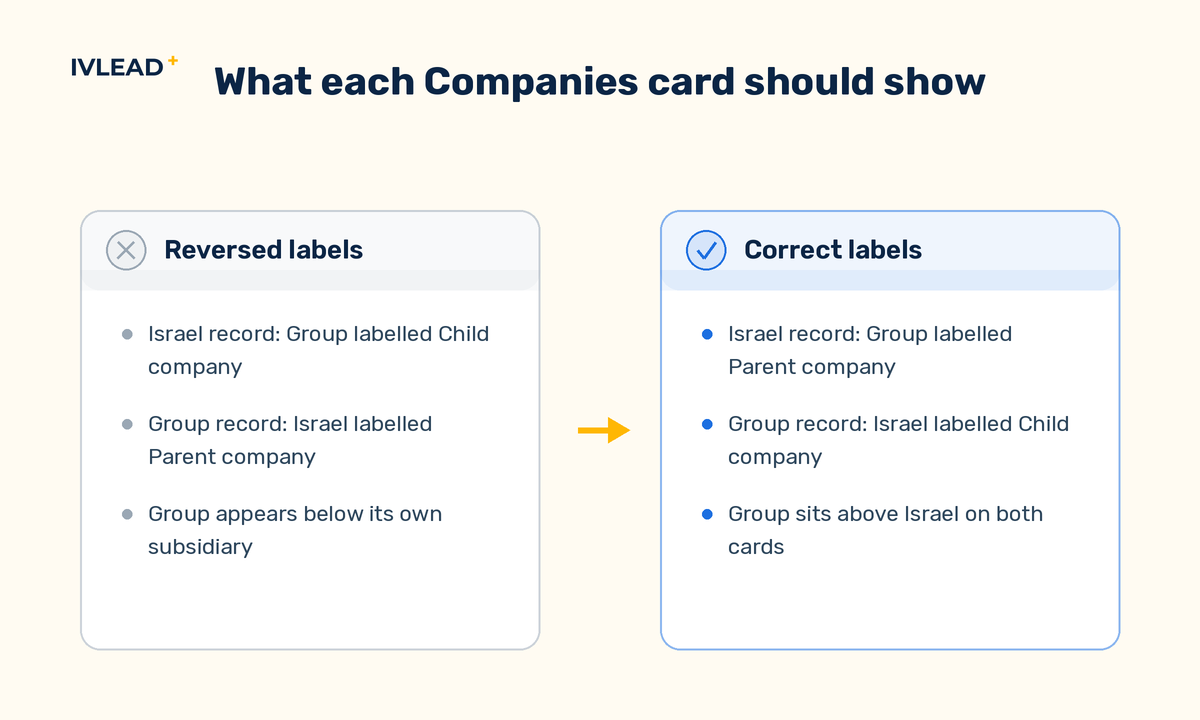
The direction rule is the easiest step to get wrong. The label always applies to the company you selected in the search, never to the record you opened. On the subsidiary's record, adding the holding company means the label is Parent company; on the holding company's record, adding a subsidiary means Child company.
Labelling a company that is already associated
If the two companies are already associated without a label, there is nothing to remove. On the Companies card, find the company, click Add association label, choose Parent company or Child company using the same direction rule, and click Update. This is a common fix where an integration or an earlier import created unlabelled associations.
Changing or removing a parent
When a subsidiary is sold or a group restructures, the child needs a new parent or none. Because HubSpot allows one parent per child, edit the association from the Companies card and remove the Parent company label before you add the new parent. Do not delete the old parent as a shortcut: deleting a company removes its associations and you lose an easy way to see which children belonged to it.
How do you import a company hierarchy in bulk?
Bulk linking works through a company import with an extra column that names each child's parent. Create the parents first, because the import can only point at companies HubSpot already has, and identify each one by Record ID or Company domain name.
A worked example
For example, a company selling warehouse automation to a logistics group has three subsidiaries buying from it, each invoiced under its own ERP customer number. The fictional holding company, Alder Logistics Group (all names and numbers below are placeholders), already exists in HubSpot with the domain alder-logistics.example. The child import file looks like this:
| Company name | Company domain name | Associated company domain | ERP customer number |
|---|---|---|---|
| Alder Logistics Israel | alder-logistics-il.example | alder-logistics.example | C-0001 |
| Alder Logistics Netherlands | alder-logistics-nl.example | alder-logistics.example | C-0002 |
| Alder Freight Services | alder-freight.example | alder-logistics.example | C-0003 |
ERP customer number is a custom company property in this example, included so each child maps to its invoicing entity. During the import:
- On the upload page, tick the option to create company-to-company associations with this import.
- On the column mapping screen, set the Associated company domain column to import as an Association.
- In the HubSpot property column for that row, choose Company domain name, because that is the identifier used for the parent.
- Add a label, choose Parent company, and click Done. The company named in that column becomes the parent of each row.
- Finish the import. The three subsidiaries appear as child companies on the Alder Logistics Group record.
Use Record ID instead of domain when entities in the group share a domain or have none. Domain matching cannot tell two companies on one domain apart, so export the parents first and match on Record ID.
What does the parent-child label do, and what does it not do?
The label names how two company records relate and makes the hierarchy visible on both.
No rollup you can rely on untested
HubSpot's article presents the labels as a way to name how two companies relate and is silent on rolling up deals or activity. Plan on the child's deals and contacts staying with the child, and look at a test group in your own portal before you build a dashboard on the parent.
Merges can fail when the chain forms a loop
Companies in a parent-child relationship can be merged. A merge can fail when the companies are part of a loop, meaning a chain of associations leads a record back to itself. The fix is to remove the Parent company or Child company label from the records you are merging, complete the merge, then re-apply it. Merges can also fail when the Salesforce integration is on, or when the companies have reached HubSpot's combined limit of 250 merges, so clean up duplicates first, then build the tree.
How do you report on a whole group?
The dependable route to a group total does not rely on the label. Add a company property, for example Account group as a dropdown, set it to the group name on the parent and on every child at import time, and build deal reports that group by that property through the associated company. The property survives relabelling and gives the ERP integration a matching value; check that your subscription's report builder can group deals by an associated company property before you rely on it.
Whether lists, views, workflows and reports can filter on the association label itself is not covered by the article and depends on the tool and your subscription. Confirm it in your portal before you build an orphan check or an automation on it.
What goes wrong, and how do you check?
Hierarchy problems rarely show on the record where they were created. They surface later as a report that double-counts a group, or an ERP sync that cannot find the right customer.
- Reversed direction. A rep on the subsidiary's record adds the holding company and picks Child company, so the tree shows the group as a subsidiary of its own subsidiary. Check: open your largest parent records and confirm that every company labelled Child company on the Companies card is owned by the record you are on.
- Deals on the wrong level. Some deals sit on the parent and some on the child, depending on who created them, so deal reports by company split one group across two rows. Check: filter deals by associated company for a known group and compare with what the parent and child records show.
- Duplicate parents. An import with a slightly different domain, or a company record HubSpot created from an email domain, produces a second Alder Logistics Group and half the children attach to it. Check: search company names for your top groups and look for near-duplicates before every import.
- Orphans and decay. The group sells a division or renames an entity, and nobody updates the tree. Check: at quarterly account planning, compare top accounts' hierarchies with the ERP customer list and, where your portal can filter a company view by association label, look for children with no parent.
How IV-Lead approaches this
Our view is that the label is worth adding only where the group structure changes a commercial decision, and that group totals should come from a shared property, not the label. The first question we ask is whether the group structure changes a commercial decision, such as which entity gets invoiced. If the answer is no, we do not model that account, because an unused hierarchy still has to be maintained.
Where it does matter, we anchor the hierarchy to the system that already knows the legal structure, which in our work is usually the ERP. Each child record carries the ERP customer identifier, the parent represents the group, and deals attach to the signing entity. That alignment is what makes a HubSpot-to-Priority integration reliable, because it can match on an identifier instead of guessing from a company name.
We build the tree by import even when the account count is small, because an import file can be reviewed and clicks cannot. We treat the one-parent rule as useful friction: when a child seems to need two parents, the business has not decided who owns the relationship, and that belongs outside the CRM. This sits inside the Sales Hub setup work we do, where the company model comes before pipelines and reports.
If your group accounts are split across duplicate records, or your reports count one customer as five, book a 30-minute portal audit and we will look at how your company model and deal associations fit together.
Frequently asked questions
Can a child company have two parent companies?
No. HubSpot allows one parent per child. For a joint venture or shared subsidiary, choose the parent that owns the commercial relationship and record the second link with a custom association label, or a company property on plans without custom labels.
Do deals on a child company show up on the parent record?
HubSpot presents the label as a description of how the two records relate, so plan on the child's deals staying with the child. Build group totals through a shared Account group property or association-based reporting, and test in your portal first.
Which HubSpot subscription includes parent and child company labels?
Both are default association labels available on all HubSpot products and plans. Custom association labels, which suit non-ownership relationships, are not included on every plan.
Can I import child companies before the parent exists?
No. Create or import the parents first, because the import matches them by Record ID or Company domain name and can only point at existing companies. Export the parents' identifiers, then import the child file.
Can an import add the Parent company label to companies already in HubSpot?
The article's wording suggests child rows can be identified by Record ID as well as domain, which implies an import can label existing records instead of creating new ones. Test it with two existing companies and check both Companies cards before running the full file.