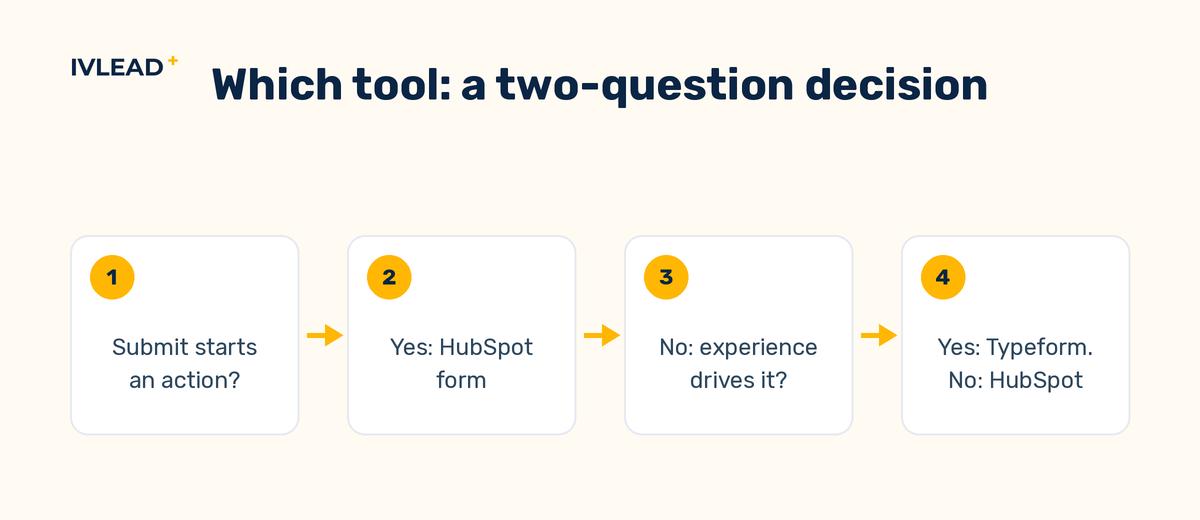
Use a HubSpot form for any multi-step form whose submissions should create contacts or start follow-up, because the data lands in the CRM with nothing in between. Use Typeform when the experience is the product itself, such as an assessment or a long survey, and when someone owns the mapping back into HubSpot. Decide what happens after submit first, then choose the tool.
Key takeaways
- The choice is about where lead data lives after submit. How the form looks on screen comes second.
- A native HubSpot form has no integration layer. That layer is where dropdown values go blank and attribution gets lost.
- Typeform suits assessments and long surveys where the experience itself drives completion.
- Before building either, write down which property each step writes to and what should fire within a minute of submission.
- Test any third-party form path by submitting a fake contact and following it through to the rep's task list.
What is the actual difference between HubSpot forms and Typeform?
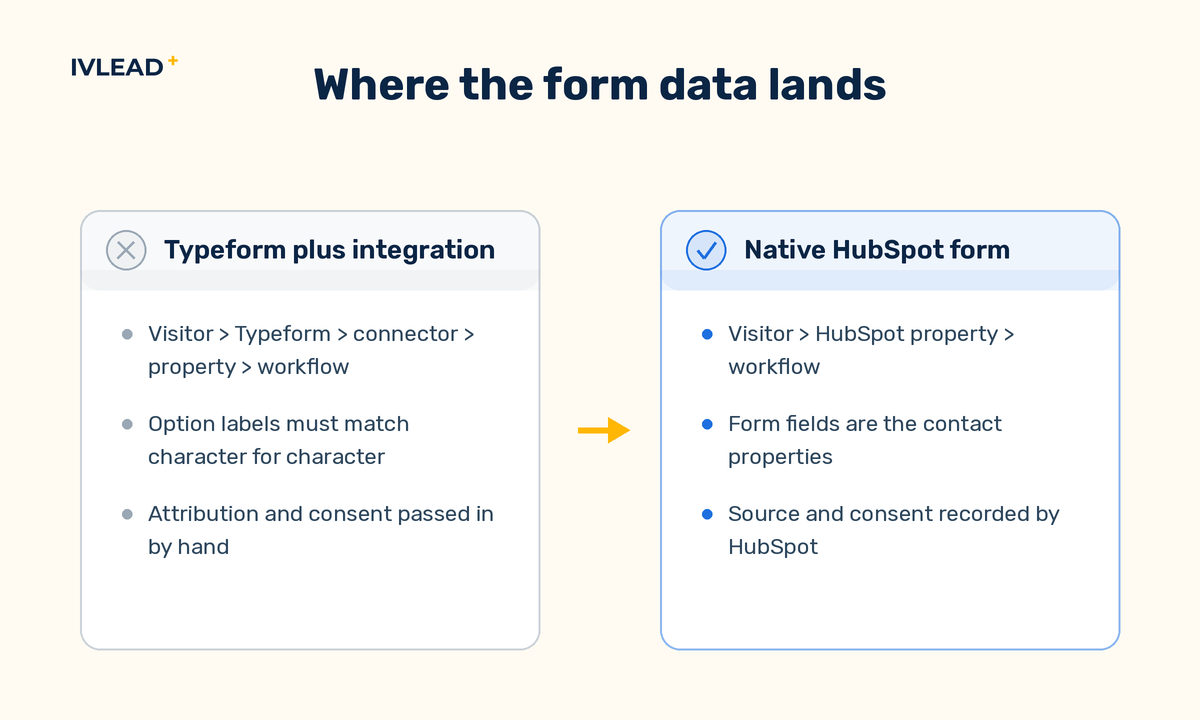
Typeform is a form experience tool. It presents questions one at a time, branches on earlier answers, and puts a lot of effort into how the form looks and feels. Its data lives in Typeform first. Anything you want in HubSpot has to be carried across by an integration, which means a mapping between Typeform questions and HubSpot properties that someone built and someone has to maintain.
A HubSpot form is a way of writing into the CRM. Each field is tied to a contact property (and, for some fields, a company property), the submission appears on the contact's timeline, and the contact is identified by email address when it submits. There is no mapping to maintain because the form fields are the properties. HubSpot's form editor can also split a form into up to 20 steps on Starter, Professional or Enterprise, so the short-ask-per-step pattern is available without leaving the CRM. Conditional logic that shows or hides fields and steps needs Marketing Hub or Content Hub Professional or Enterprise.
Two middle options are worth knowing. HubSpot's non-HubSpot forms tool can collect submissions from a plain HTML form on a page that carries its tracking code, but it maps answers only to single-line text properties and skips any form inside an iframe or with its own submit script, which usually rules out an embedded Typeform. And Typeform can be embedded on a HubSpot-hosted page with hidden fields that pass campaign parameters and the visitor's tracking cookie into the submission, which protects attribution if the integration uses them.
What should you decide before choosing a tool?
What must happen in the first minute after submit?
Write the list down: create or update the contact, set a lifecycle stage, assign an owner, create a task, record consent. If that list is longer than "store the answers", the form is part of the sales process, and each item can fail when the data travels through a connector first.
Which property does each question write to?
Every question on a multi-step form should map to a named HubSpot property with a defined set of values. A question with no home in the CRM is either a question you do not need or a property you have not created yet. Doing this on paper first also shows when two forms ask the same thing but write to two different properties, which leaves any report on that question incomplete.
How will you know whether the steps helped?
Splitting a form is meant to raise completion, so decide how you will measure it. Check whether the tool reports completions per step and keeps answers from people who stop partway; if not, compare submissions with page views before and after the change.
Who owns the form in six months?
A third-party form plus integration needs someone who understands both tools, because renaming a question or adding a dropdown option on one side can silently break the other. If nobody can name that person, keep the form native.
Turn the answers into a one-page spec with the fields per step, the target property and allowed values for each, and the automation that fires on submit, then build from that spec in whichever tool you pick.
When does Typeform make sense, and when does it not?
Typeform makes sense when completion depends on the experience and the submission does not need to drive immediate action. Its branching and visual style are real advantages there. Typical cases:
- A maturity assessment or scorecard that shows the visitor a result at the end and is itself a piece of content.
- A long research survey or post-event feedback where the answers are used for analysis and no sales action follows.
The email and a few key answers still belong in HubSpot, but the integration carries fewer fields and nothing urgent waits on it.
Typeform does not make sense for a demo request, a contact-sales form, a pricing inquiry or a gated asset that enrolls the contact in a nurture flow. These forms exist to start a process in HubSpot, and the integration adds delay and failure points without adding anything the process needs.
The test to apply: if a submission that failed to reach HubSpot would be a problem by tomorrow morning, build the form in HubSpot.
What are the trade-offs in practice?
| Dimension | Native HubSpot form | Typeform plus integration |
|---|---|---|
| Where the data lands | Directly on the contact record | In Typeform first, then synced |
| Property mapping | None; fields are properties | Built and maintained by hand |
| Dropdown values | Chosen from the property's options | Must match HubSpot option values exactly |
| Automation trigger | Fires on submission | Fires when the sync completes, if it completes |
| Attribution | Recorded by HubSpot tracking on a tracked page | Must be passed in deliberately |
| Branching and design | Steps and conditional fields; standard web styling | Rich branching, strong visual design |
| Direct cost | No additional tool | A second subscription, plus the connector if one is paid for separately |
| Data location and maintenance | One system, one processor, one owner | Two systems and processors; a change on either side can break the link |
A native form writes a property value directly. A third-party form writes a text answer that an integration then has to match to a property option, so if the labels differ by a single character the value can land blank, or the integration may add an option nobody intended. Depending on the integration, an email question that is not mapped as the identifier can create a new contact on each submission. Attribution from the visitor's session is captured by HubSpot's tracking when the form is native, provided the tracking code is on the page and, where a cookie consent banner is used, the visitor has accepted tracking cookies. A submission arriving through a connector can show the connector as its source unless the page and campaign data are passed in on purpose.
Data protection follows the same line. With Typeform, lead data sits with a second processor, so your data processing agreements and deletion process have to cover both systems. A contact deleted in HubSpot still exists in Typeform until someone deletes it there, which matters for any company that answers security questionnaires from EU buyers.
What does a three-step demo request form look like in practice?
For example, a company that sells compliance software to mid-sized firms wants a demo request form on its pricing page, split into three steps so that the first screen asks for very little.
Step 1 asks for Email (required, and the identifier that decides whether the submission updates an existing contact or creates one), First name and Last name.
Step 2 asks for Company name, Job title and Company size, a dropdown with the values 1-50, 51-200, 201-1,000 and 1,001+, the same four values used on every other form in the portal so that reports by company size add up.
Step 3 asks for two custom contact properties and a consent checkbox. Primary interest has the values SOC 2, ISO 27001 and GDPR. Buying timeline has the values Within 3 months, 3 to 6 months and Researching. The checkbox records permission to send marketing email.
On submit, a workflow named Demo request - routing runs. If Company size is any of 51-200, 201-1,000 or 1,001+ and Buying timeline is anything other than Researching, it sets Lifecycle stage to Sales qualified lead, assigns Contact owner by rotating between the two SDRs, creates a task due the next business day titled "Call demo request", and notifies the owner with the step-3 answers in the message. Otherwise it sets Lifecycle stage to Lead and enrolls the contact in a nurture workflow matched to Primary interest. Exclude contacts already at Opportunity or Customer, since lifecycle stage normally only moves forward, and turn on re-enrollment for this form submission so repeat requests are routed again.
Built as a native HubSpot form, every one of those items is configured in one system and the form fields are the properties. Built in Typeform, the same outcome needs an integration that maps eight answers to eight properties with dropdown labels matching character for character. The email question has to be flagged as the identifier, hidden fields have to carry campaign parameters, and the consent answer has to map to the right subscription type. All of that work exists only because the data starts somewhere else.
What goes wrong with multi-step forms, and how do you check for it?
These can happen in either tool, and they happen more often across an integration.
- Dropdown values that do not match. The form sends "51 to 200" and the property expects "51-200", so the field lands empty and the contact never qualifies for routing. Check: filter contacts created by this form where the property is unknown. Any result is a mapping gap.
- Duplicate contacts. The integration creates a record instead of updating the one that already exists, so the rep sees two half-complete people. Check: search for contacts sharing an email address, or created minutes apart with the same company.
- Lost attribution. Submissions arrive with the connector as the source, so campaign reports show the integration doing all the work. Check: open a recent test submission and read the source properties on the contact.
- Consent not captured. The checkbox was answered in the form tool but never written to a HubSpot subscription, so HubSpot has no record of their permission, and depending on your subscription settings they may not receive marketing email. Check: look at the subscription status on a test contact.
- Qualifying questions before the email. A form that asks about budget on step 1 and email on step 3 collects most of its abandoned answers from people you cannot identify. Check: open the form and confirm Email is the first field on step 1.
- Nobody tested end to end. The form was tested when it was built and never again, and a later change on either side broke it quietly. Check: submit a test contact after every change and follow it to the owner's task list.
Run these checks after every change to either the form or the integration, and at least monthly.
What is IV-Lead's view on HubSpot vs Typeform forms?
Our recommendation is a native HubSpot form for anything that starts a sales or marketing process, even if the third-party form looks better. The reasoning is about failure modes. A native form has fewer places to fail: there is no sync layer that can drop a value, so most problems show up in the workflow, where they are easier to find. An integrated form adds a quiet failure point: the submission looks fine on the Typeform side, a dropdown lands blank in HubSpot, and the contact never reaches the routing branch. Nobody notices until someone asks why demo requests fell in a quarter where traffic rose.
We also think the multi-step question is often the wrong question. A demo form that asks for six fields across three steps will usually do better as a form that asks for three fields on one screen and lets enrichment or the first call fill in the rest. Deciding what the form must collect, and dropping what would merely be nice to know, often removes the need for the experience tool altogether.
Where Typeform does make sense, we treat the mapping as part of the HubSpot build, with the same owner as the form, and keep routing and task creation in HubSpot. That is part of how we set up Sales Hub for B2B teams.
If you are not sure what happens to a contact in the minute after they submit one of your forms, book a 30-minute portal audit and we will trace a test submission through to the owner and the report.
Frequently asked questions
Can I use Typeform and HubSpot together?
Yes, through an integration that maps Typeform answers to HubSpot properties. It works when option values match exactly, email is set as the identifier and someone tests it after every change.
Do multi-step forms convert better than single-page forms?
Often, because each step asks for less, but a long form split into steps is still a long form. Cutting the fields to what the next action actually needs usually helps more than adding steps, in either tool.
Which tool should I use for a quiz or assessment?
Typeform, if the result shown at the end is the reason people complete it and no sales action follows. Still send the email and the headline result into HubSpot so the contact record reflects the interaction.
How do I check whether Typeform submissions are reaching HubSpot correctly?
Submit a test entry with a recognizable fake email, then open that contact in HubSpot. Confirm every mapped property has a value, the source properties show the page, the subscription status matches the consent given, and the expected owner and task are set.